

Add a feedback button
Keep a button on the side of your site that opens a survey when users want to give feedback, and choose its label, icon, position and colors.
A feedback button stays on the side of your pages. Users click it when they have something to say, and the survey opens next to it. Unlike a proactive survey, it never interrupts anyone: it is there when users need it.
Before you start
Section titled “Before you start”- The Screeb tag is installed on your website or web app, see Install Screeb on your website or web app.
- The survey exists, see Create a survey from a template or with AI. Short surveys work best here: an open question, or a rating followed by an open question.
- Your role lets you edit surveys. Changing the default design of the button also needs the permission to update the organization settings.
Set up the button
Section titled “Set up the button”- Open the survey and click Design & targeting at the top.
- On the Type of interaction page, click Feedback button. If another channel opens instead, click Audience targeting under Feedback button in the side menu.
- Choose when the button appears, for example On page opening, after 0 seconds to show it as soon as the page opens.
- Under Who and Where, choose the users, devices and pages that get the button, as for any survey. See Choose who sees your survey.
- In the survey settings, below the targeting, tick Multiple responses if users can send feedback more than once (see below).
- Click Save, then the button at the top right that reads Set live followed by the channel name.

One answer or several
Section titled “One answer or several”By default, each user answers once: after their answer, the button disappears for them. For a permanent feedback channel, tick Multiple responses: the button comes back and the same user can answer again later.
Multiple responses cannot be combined with Display again. If the card is greyed out, untick the Display again cards first.
Design the button
Section titled “Design the button”The button has its own default design, shared by every feedback button of the workspace.
- Open Feedback button, in the Survey design settings group of the settings. A live preview shows on the right.
- Under Format, choose Label (a tab with a text, tagged Best response rate) or Avatar (a round picture).
- Set the Position: Middle left or Middle right of the screen, and the Button size. The size needs advanced customization in your plan.
- For a label, enter its text in each language of your surveys, such as “Feedback”, and pick an Icon: none, Screeby or your own image. For an avatar, choose whose picture it shows.
- Under Colors, set the button and text colors to match your site.
- Below Card settings, set the look of the survey that opens from the button.
- Click Save.
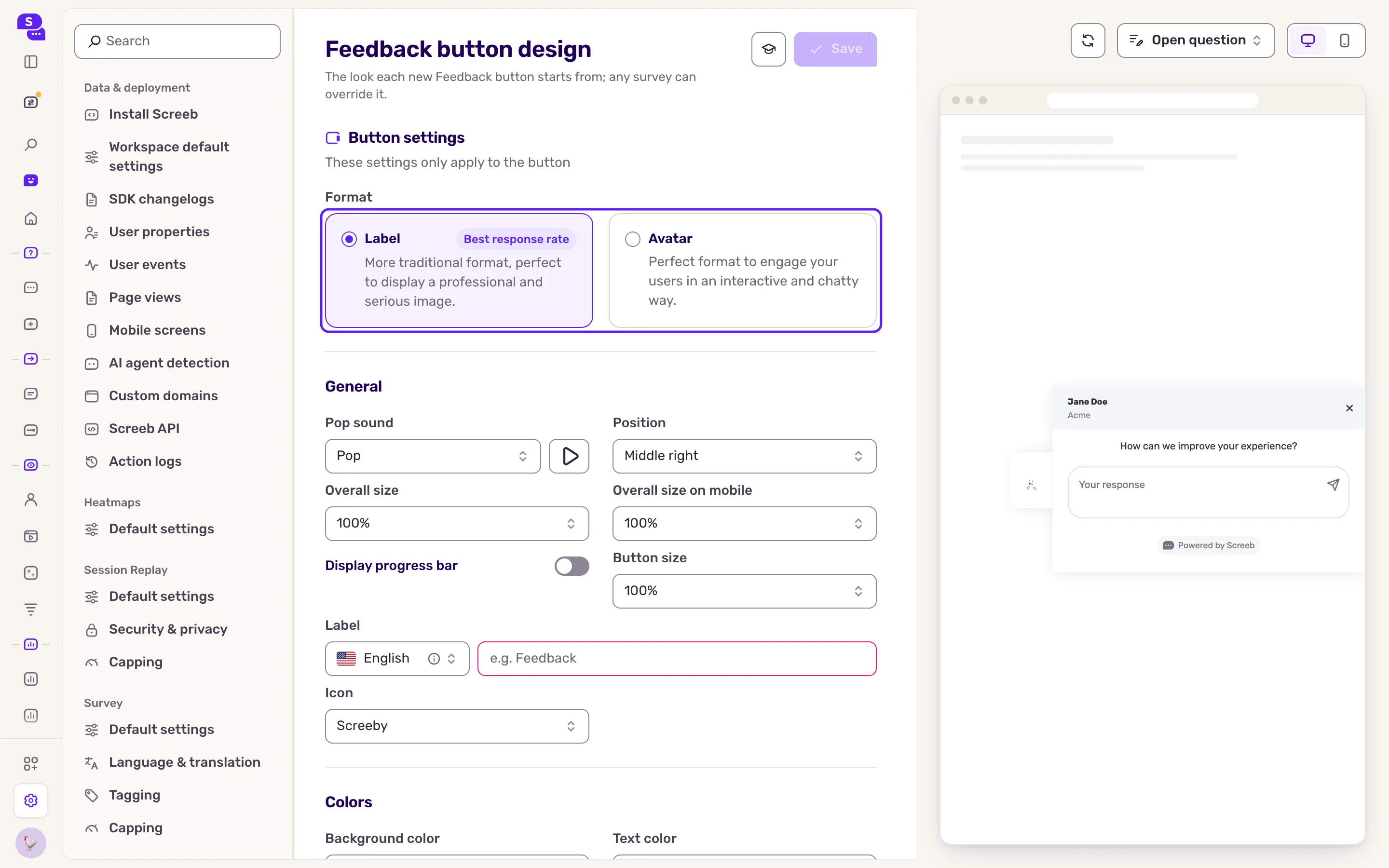
The sections between Button settings and Card settings style the button only. To give one survey a different button, click Design under Feedback button in the survey and switch to Specific design. See Customize the design of your surveys.
What you get
Section titled “What you get”The button shows on the pages and for the users you chose. A click opens the survey next to it; answers land in the survey results with those of the other channels.
Keep the label short and explicit, such as “Feedback” or “Report a problem”, and act on what comes in: users keep using the button when they see their feedback leads somewhere.
Troubleshooting
Section titled “Troubleshooting”The button does not show. Check that the channel is live and that the page and user match the targeting, with Screeb Inspector. A user who already answered no longer sees it, unless Multiple responses is ticked.
Multiple responses is greyed out. As its tooltip says, “The multiple responses rule is not compatible with a recurrence rule”. Untick the Display again cards, or switch the trigger away from manual.
The button hides part of your page. Move it to the other side, or reduce its size.