

Connect an AI assistant to the Screeb MCP server
Let Claude, ChatGPT, Cursor or another MCP client read your Screeb data and answer your questions about it, after you sign in and pick an organization.
The Screeb MCP server lets an AI assistant such as Claude, ChatGPT or Cursor read your Screeb data and answer questions like “What do users complain about in my NPS survey this month?”. You sign in with your Screeb account and choose the organization the assistant can read.
Before you start
Section titled “Before you start”- Your Screeb account is a member of the organization you want to connect.
- Your AI assistant or code editor supports remote MCP servers with OAuth sign-in, such as Claude, ChatGPT, Cursor, Claude Code or Visual Studio Code. A client that only accepts a fixed API token cannot connect.
- The access is read-only: the assistant cannot change anything in Screeb.
Get the server address
Section titled “Get the server address”- Open your organization, click Settings in its sidebar, then, under AI, click General. The organization settings show to Admins only: as a Member, open the General AI settings page directly.
- In the MCP server section, copy the address.

Most accounts use https://mcp.screeb.app/mcp. Accounts on a dedicated Screeb environment have their own address, so always copy the one your admin shows.
Add the server to your assistant
Section titled “Add the server to your assistant”- Open the connector or MCP settings of your assistant. In Claude, it is Settings, then Connectors, then Add custom connector.
- Enter a name, for example
Screeb, and the server address. You need no token or API key. - Save, then connect. The assistant opens a Screeb sign-in window.
In a code editor or a command line tool, add the server to its MCP configuration. For Claude Code:
claude mcp add --transport http screeb https://mcp.screeb.app/mcpFor Cursor, in .cursor/mcp.json:
{ "mcpServers": { "screeb": { "url": "https://mcp.screeb.app/mcp" } }}Sign in and grant access
Section titled “Sign in and grant access”- Sign in with your Screeb account, if you are not signed in already.
- On the consent screen, pick an organization in Organization. The access requested is “Read your workspaces and survey data”.
- Click Allow. You go back to your assistant, now connected.
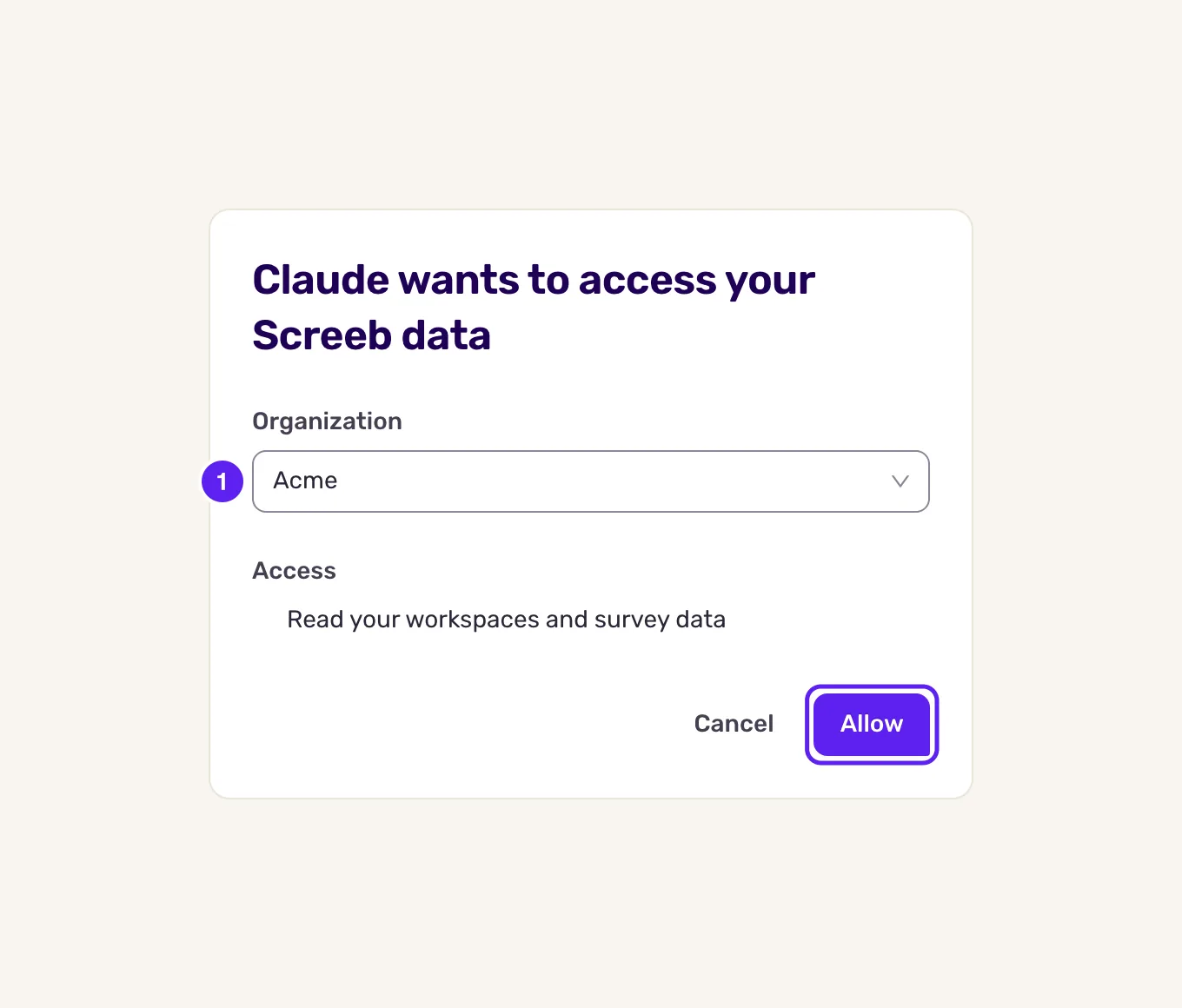
The assistant can read one organization, and only the workspaces your account can access there. To connect it to another organization, sign in again from the assistant and pick that one.
Ask your questions
Section titled “Ask your questions”The server gives your assistant three read-only tools. It picks them on its own as you ask questions.
| Tool | What it does |
|---|---|
list_workspaces |
Lists the workspaces of the organization that you can access. |
search_surveys |
Finds surveys and messages by name or tag, with their status, response counts and questions. |
ask_screeb_ai |
Asks Screeb AI a question about your data: responses and scores, segments, events, sessions and messages. |
When the organization has one workspace, the assistant uses it. With several, name one in your question (“in the Marketing workspace”), say “across all workspaces”, or answer when the assistant asks you to pick. Follow-up questions in the same conversation keep the context of the previous ones.
Manage connected assistants
Section titled “Manage connected assistants”- Click your name at the bottom of the sidebar, then Account.
- In Connected applications, find the assistant and the organization it can read.
- Click Revoke. The assistant loses access within an hour at most, and must go through sign-in again to reconnect.
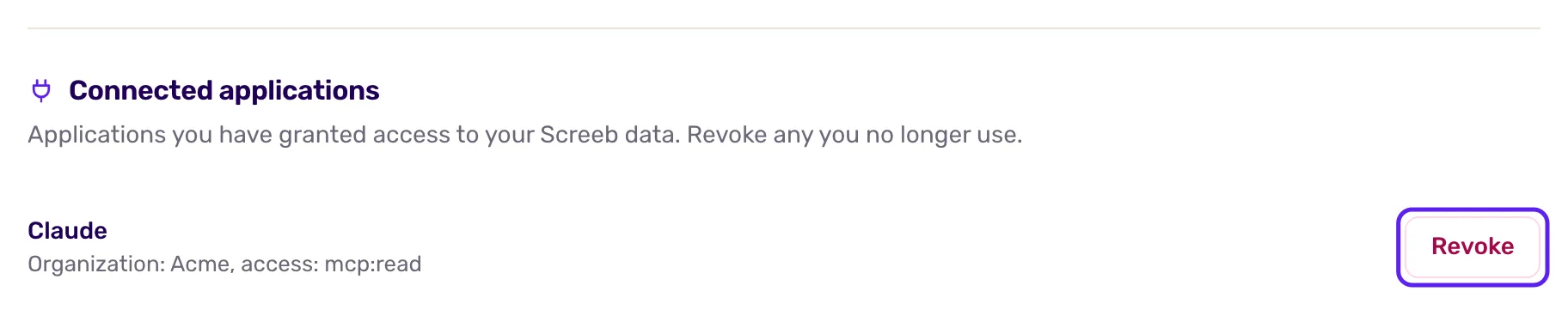
Access is granted per organization: revoking one organization leaves the others connected.
What you get
Section titled “What you get”Your assistant answers with figures and summaries computed from your Screeb data, without exports or dashboards. Each assistant you connect shows in your account settings, where you can remove it at any time.
Troubleshooting
Section titled “Troubleshooting”The assistant cannot connect. Check the address against the MCP server section of your admin, and that your assistant supports OAuth sign-in for remote MCP servers.
The consent screen says “Authorization failed”. The sign-in request expires after 10 minutes. Start the connection again from your assistant.
Your organization is not in the list. Your account is not a member of it. Ask an admin of that organization to invite you.
The assistant asks which workspace to use. Name the workspace in your question, or say “across all workspaces”.
The assistant asks you to sign in again. This usually happens after several weeks without use, or after you revoked it. Go through the sign-in and consent again.