

Connect Screeb to your tools
Understand what Screeb integrations do, where you set them up, and who can install them in your workspace.
Integrations connect Screeb to the rest of your stack. They bring your users and events into Screeb, and send your survey responses and reports to the tools your team already uses.
Sources and destinations
Section titled “Sources and destinations”Every integration has a direction:
- A source sends data to Screeb: users, user properties and events from a CDP or an analytics tool. For example, Segment, RudderStack, Amplitude or Contentsquare.
- A destination receives data from Screeb: survey responses, reports or single answers. For example, a webhook, Slack, Notion, Jira Software or Zendesk.
Some tools exist in both directions, as two separate integrations: Segment, RudderStack, Amplitude, Contentsquare and Salesforce. Install the one you need, or both.
What an integration can do
Section titled “What an integration can do”Each integration works in one or more of these modes:
| Mode | What it does | Examples |
|---|---|---|
| Data source | Imports users, properties and events into Screeb, to target surveys and analyze responses. | Segment, RudderStack, Amplitude, Contentsquare |
| Reporting | Shares responses and reports from the survey analysis, once or on a schedule. | Slack, Teams, Notion, Jira Software |
| Hooks | Sends data automatically when something happens: a survey is displayed, a question is answered, a response is completed. | Webhook, Stitch, SFTP, Segment, Amplitude and Mixpanel destinations |
| Manual forwarding | Sends one response on demand, from the list of responses. | Zendesk, Intercom, Productboard, Harvestr, Trello, Cycle, Monday, Jira Software |
Integrations only apply to surveys: messages send no data to them.
Where you set them up
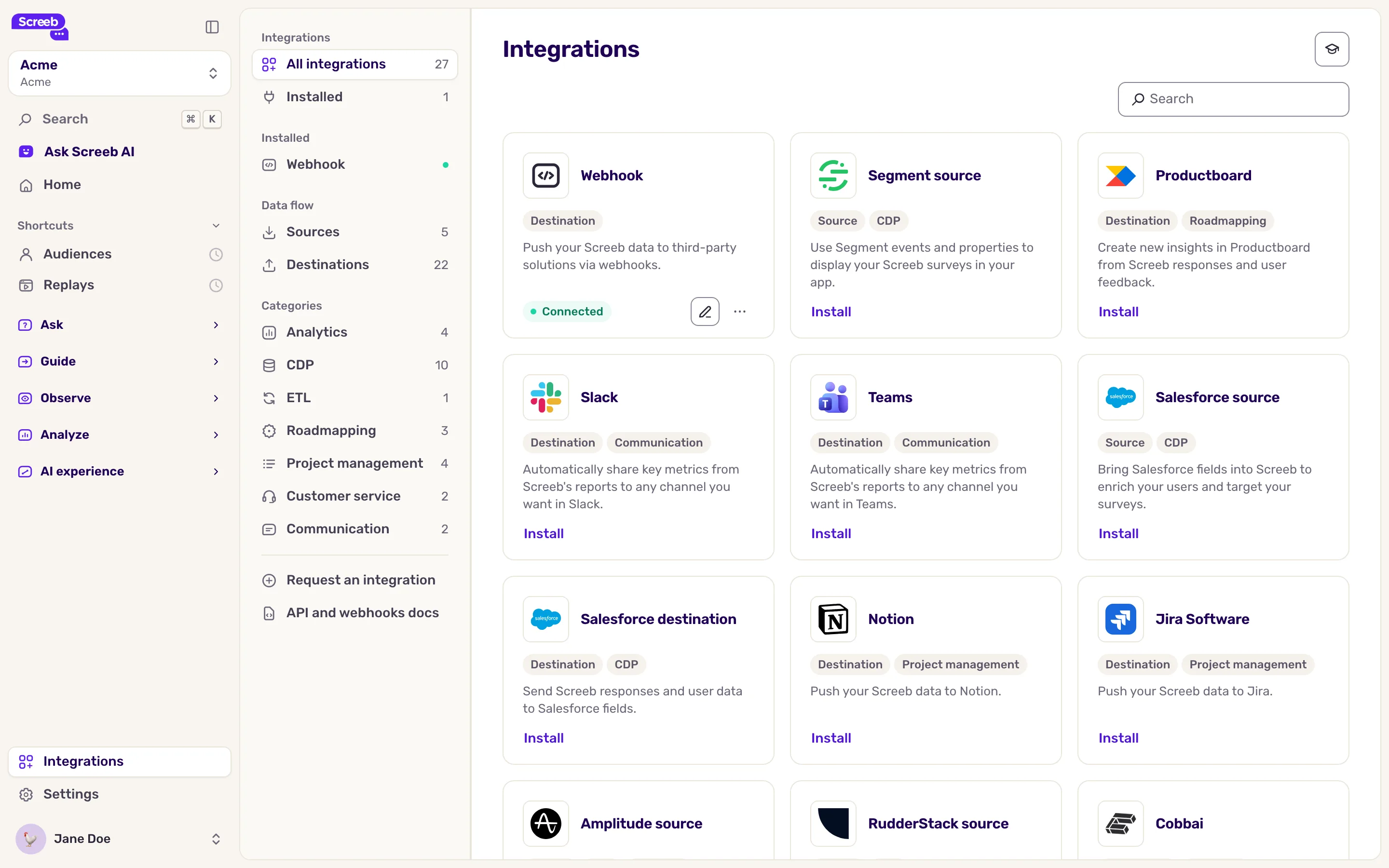
Section titled “Where you set them up”The catalog. In the main navigation, open Integrations. The side menu filters the catalog: All integrations, Installed, Sources, Destinations and categories. Click Install on a card to open its page. Installed integrations come first, with Edit and Delete. A tool is missing? Use Request an integration at the bottom of the side menu.
The integration page. It holds the workspace-wide settings of one integration: the account to connect, the keys to copy, the webhooks to call. Hooks set up here run for every survey of the workspace.
The Connect page of a survey. Open a survey, click Analyze, then Connect at the bottom of the side menu. Webhooks, SFTP exports and Cobbai set up here only receive the data of this survey.
The survey builder. Select a question: the Integration section of the side panel adds a webhook called each time this question is answered. See Send Screeb data to a webhook.
The responses. In All responses, the menu of a response offers one “Send to” entry per installed forwarding integration. In the survey analysis, Share responses sends responses and reports to Slack, Teams and other connected tools.
Plans and permissions
Section titled “Plans and permissions”- Each integration is part of some plans only. When yours does not include it, the card shows Upgrade to install instead of Install, and clicking it shows the upgrade options.
- Every member of the workspace sees the Integrations catalog. Only admins can install, set up and remove integrations, and only admins see the Connect page of surveys.
When a connection breaks
Section titled “When a connection breaks”Integrations that connect an account, such as Slack, Teams, Notion, Jira Software or Salesforce, can lose access: a revoked app, an expired token, a removed user. The card and the side menu then show Reconnect required, and Screeb cannot send data to that tool until you reconnect it. Open the integration page and connect the account again.
Removing an integration deletes its configuration for good, including its webhooks or mappings. To pause a webhook, switch it off instead.