

Tag responses automatically
Set keyword rules and AI tags that label the written answers of your surveys for you, so topics, filters and reports group them by subject.
Tags label your responses by subject, such as pricing, onboarding or a bug. Instead of tagging each answer by hand, set rules once: Screeb tags every written answer that matches, past and future.
Before you start
Section titled “Before you start”- To change the rules, you need the Editor or Admin role in the workspace. With the Analyst role, you can read them only.
- Tagging reads the answers to open-ended questions only, such as a text question or the follow-up of an NPS. Ratings and choices are not tagged.
- Smart tagging needs AI features to be available for your workspace.
Choose the right kind of tag
Section titled “Choose the right kind of tag”| Kind | How a response gets it | Use it when |
|---|---|---|
| Automatic tagging | The answer contains one of the keywords you listed. | You know the words your users write, such as “slow” or “invoice”, and want predictable results. |
| Smart tagging | Screeb AI reads the answer and decides whether the tag fits its meaning. | Users describe the same problem in many ways, and keywords miss some of them. |
You can use both together. You can also still add tags by hand on a response.
Set up automatic tagging
Section titled “Set up automatic tagging”- Click Settings, then, under Survey, click Tagging.
- Under Automatic tagging, click Add. A new rule appears.
- In If the text contains any of these keywords, type a keyword and press Enter. Add as many as you need: one match is enough.
- In Then add all these tags, type the tags to add. The field suggests the tags already used in the workspace.
- Add one rule per subject, then click Save at the top of the page.
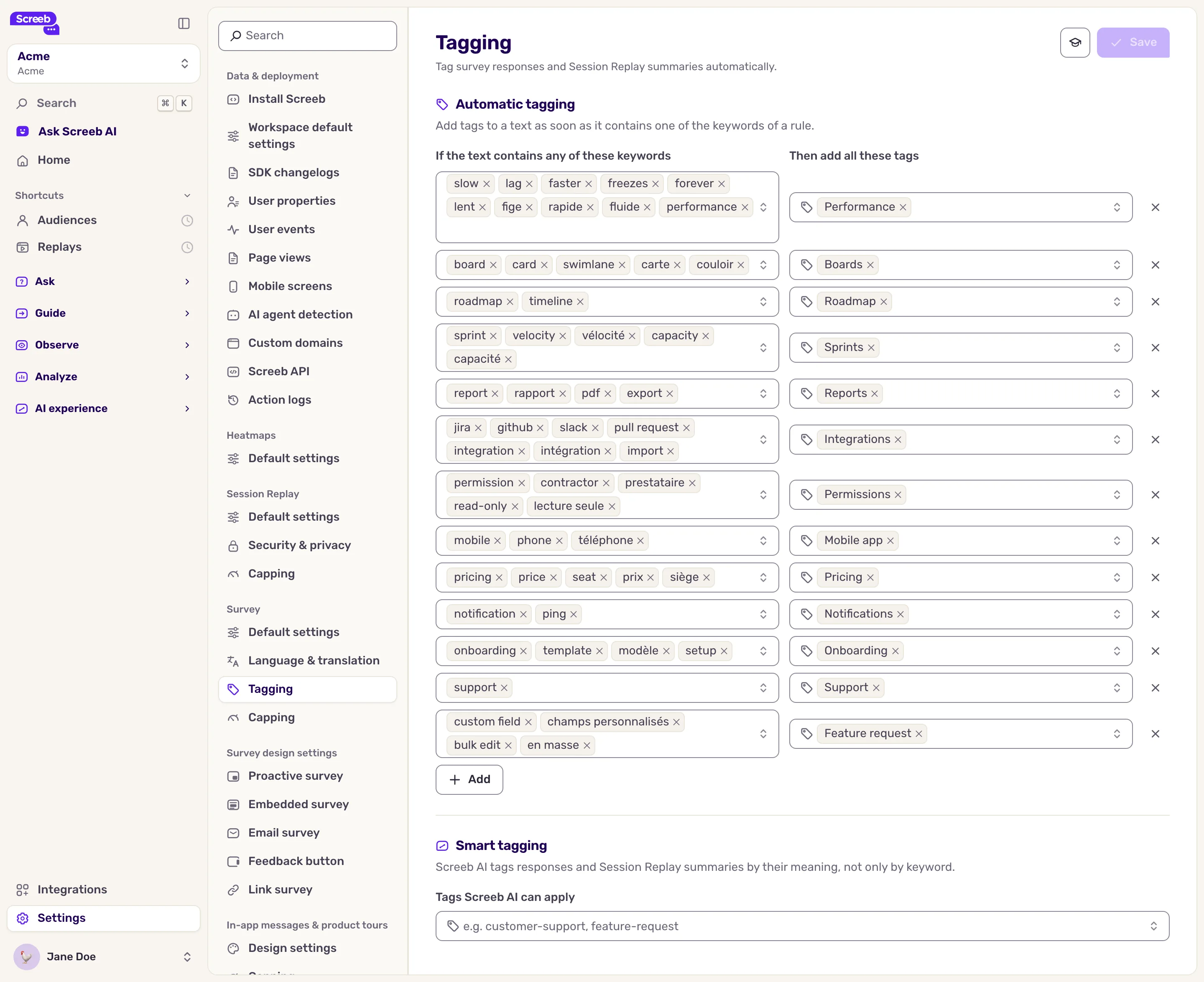
A keyword matches anywhere in the answer, whatever the case: “slow” also matches “Slower than before”. Keep keywords specific, or a short one like “ui” will match “build” too. To delete a rule, click its Remove icon, then save.
Set up smart tagging
Section titled “Set up smart tagging”- On the same page, under Smart tagging, type the name of a tag and press Enter, for example “feature-request” or “missing-information”.
- Add the other tags you want the AI to use.
- Click Save.
Name each tag after the subject it stands for: the AI decides from the name only, so “pricing-too-high” works better than “p1”.
What you get
Section titled “What you get”As soon as you save, Screeb tags new answers as they come in, and goes back over the answers already collected since the workspace was created. On a large workspace, past answers can take some time to get their tags.
Tags then show on each response, and you can use them to:
- Filter survey responses on a tag.
- Explore topics in your feedback: each tag becomes a topic, with its volume, share and sentiment.
- Add a topics widget to a report, see Build workspace and organization reports.
Automatic tagging rules and smart tags also apply to the AI summaries of your session replays.
When you translate responses into one language, keywords are matched on the translation. Write your keywords in that language. See Translate responses automatically.
Troubleshooting
Section titled “Troubleshooting”A response that contains a keyword has no tag. The keyword is in an answer to a rating or choice question, or past answers are still being tagged. Come back later.
The fields are greyed out. Your role lets you read the rules only. Ask a teammate with the Editor or Admin role.
Saving shows “Could not save settings”. Try again. If the error persists, contact support.