

Choose what to record with recording scopes
Create recording scopes to record only the sessions that matter, on given pages, for given users or after a given answer.
A recording scope is a set of targeting rules that decides which sessions Screeb records. Instead of recording every session, you record the journeys that answer a question, and the list stays short enough to review.
Before you start
Section titled “Before you start”- Session Replay is part of your plan and turned on for the workspace, see Configure session replay recording. While it is off, the page says Recording is off and no scope records.
- Your role lets you create and edit recording scopes. Without it, the create and edit buttons do not show.
How scopes record
Section titled “How scopes record”- Screeb starts recording a session as soon as the user matches the conditions of a live scope. With a lookback duration in the settings, the replay also covers the seconds before.
- A session that matches several scopes is recorded once.
- Three scopes tagged Automatic scope are always in the list: Survey, Message and SDK. They gather the sessions recorded when a survey or message shows, or when your code starts a recording. You set them in the Session Replay settings, not here.
Create a scope
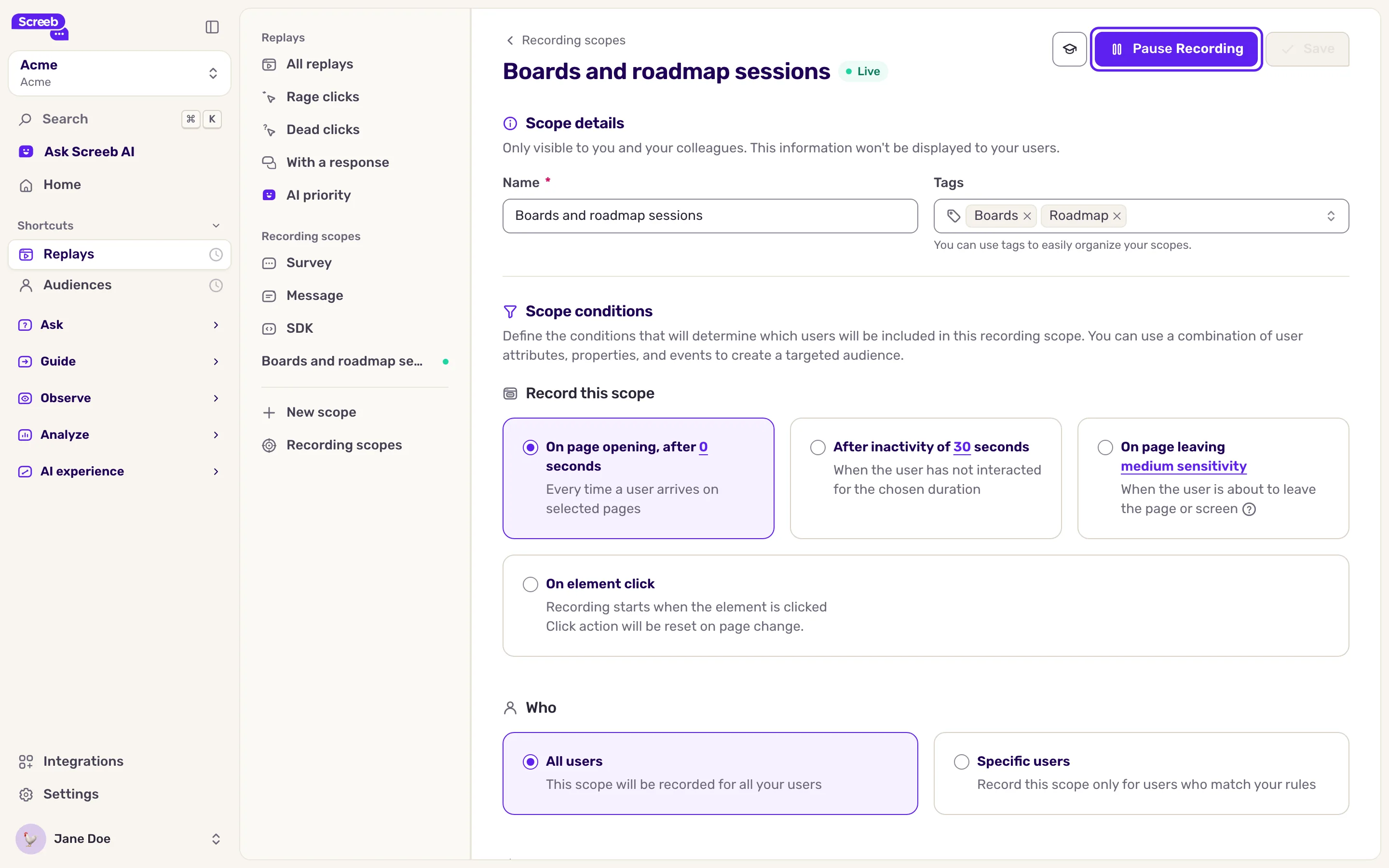
Section titled “Create a scope”- Under Observe, open Replays, then click Recording scopes at the bottom of the side menu.
- Click Create a recording scope.
- Under Scope details, fill in Name, and add Tags to organize your scopes if you like.
- Under Scope conditions, set the rules as for the targeting of a survey: the trigger at the top, then Who (Specific users for segments, properties, events or answers), Where (devices, On specific pages or On specific screens) and When, such as After a session of a number of seconds.
- If the scope must run for a limited time, use Define start date, Define end date or Define time window under Scope settings.
- Click Save. The scope is saved, but it does not record yet.
- Click Start recording now, then confirm with Start recording now. The scope goes live for all your users.
For the details of each rule, see Choose who sees your survey. With AI agent detection on, the AI classification rule records or skips the sessions of AI agents, see Detect AI agents and AI-referred visitors.
Saving a scope does not start it. After you create one, check that its status is Live: a scope that was never started is the most common reason for missing sessions.
Manage your scopes
Section titled “Manage your scopes”The list shows each scope with its tags and status:
- Live: the scope records.
- Scheduled: the start date is not reached yet.
- Paused: Session Replay is off for the workspace, or the end date is past.
- Stopped: the scope was never started, or was stopped.
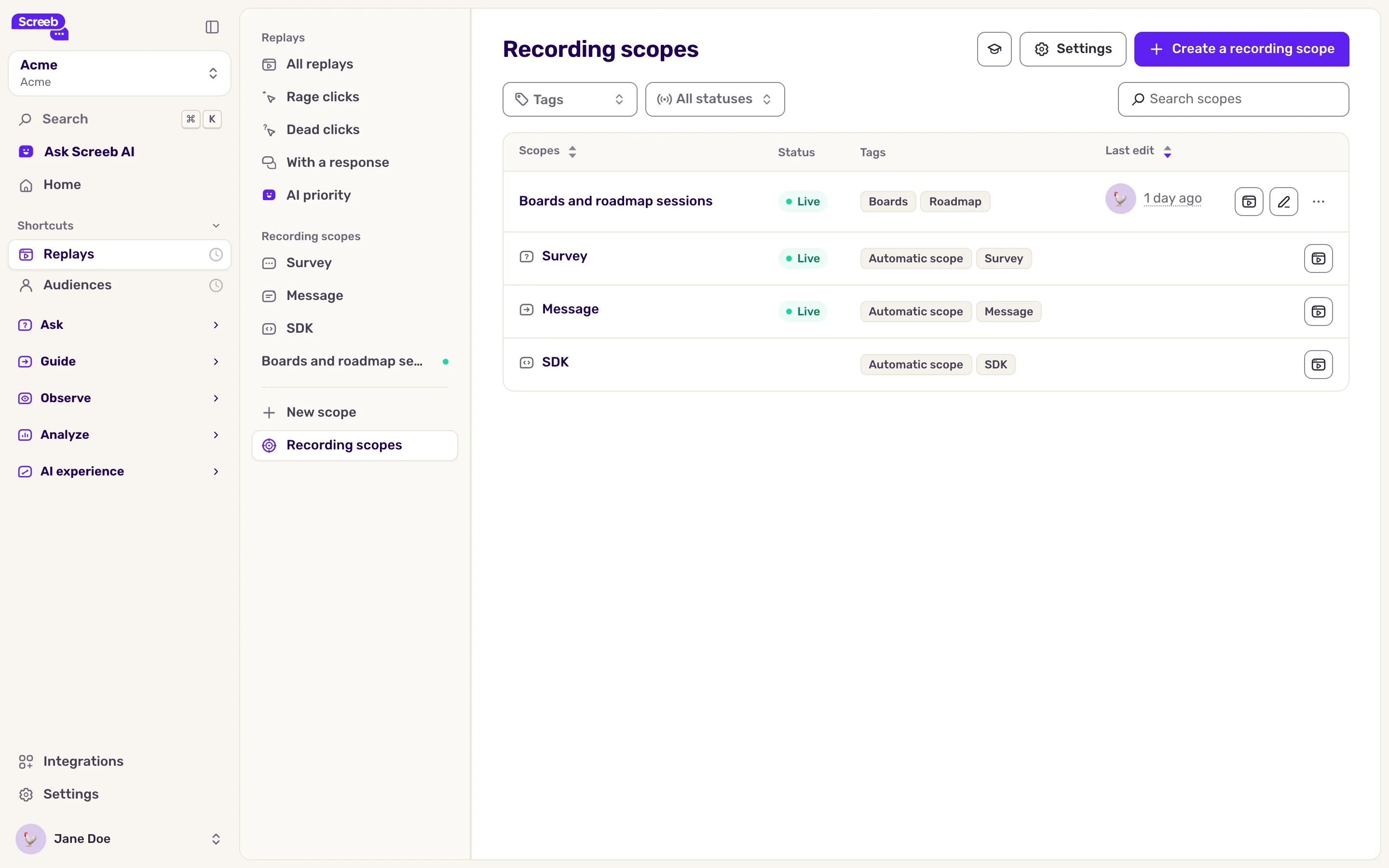
- Click the name of a scope, or Watch replays, to see its sessions.
- In the side menu of Session Replays, click the status of a scope to start or stop it, after a confirmation.
- To delete a scope, open the menu of its row and click Delete.
- To limit how many sessions each scope records, use per-scope capping, see Configure session replay recording.
Pick the right conditions
Section titled “Pick the right conditions”| Goal | Conditions | Example |
|---|---|---|
| Improve a key journey | On specific pages and After a session of | The checkout pages, sessions longer than 30 seconds |
| Understand dissatisfaction | Specific users with Gave a score | Users who gave a low CSAT score |
| Follow the adoption of a feature | Specific users with Performed event (count) | Users who used the new feature at least once |
| Explore a low-traffic product | All users and On all pages | Every session, until you know what to look for |
A few habits help:
- Tie each scope to one question and one journey, rather than a large part of your product “just in case”.
- Combine a page rule with a minimum session length to skip quick bounces.
- For a scope based on a score, set a longer lookback to see what led to the answer.
- Review your live scopes regularly, and stop the ones nobody watches.
What you get
Section titled “What you get”The sessions that match a live scope show in Replays. Each scope has its entry in the side menu, which filters the list on its sessions.
Troubleshooting
Section titled “Troubleshooting”A scope has no sessions. Check that its status is Live, that its rules match real visits (the URL rules in particular), that no capping limit is reached, and that the Screeb SDK runs on those pages.