

Protect privacy in session replays
Choose what session replays hide, leave sensitive elements out of the recording, and decide whether to record the browser console and iframes.
Screeb masks sensitive content in the browser, before a session leaves it. These settings choose how much replays hide, for the whole workspace.
Before you start
Section titled “Before you start”- Session Replay is part of your plan, and your role lets you edit the workspace settings. Otherwise the Session Replay group does not show in Settings.
- To turn recording on and choose when it starts, see Configure session replay recording.
Mask sensitive content
Section titled “Mask sensitive content”- Click Settings, then, under Session Replay, click Security & privacy.
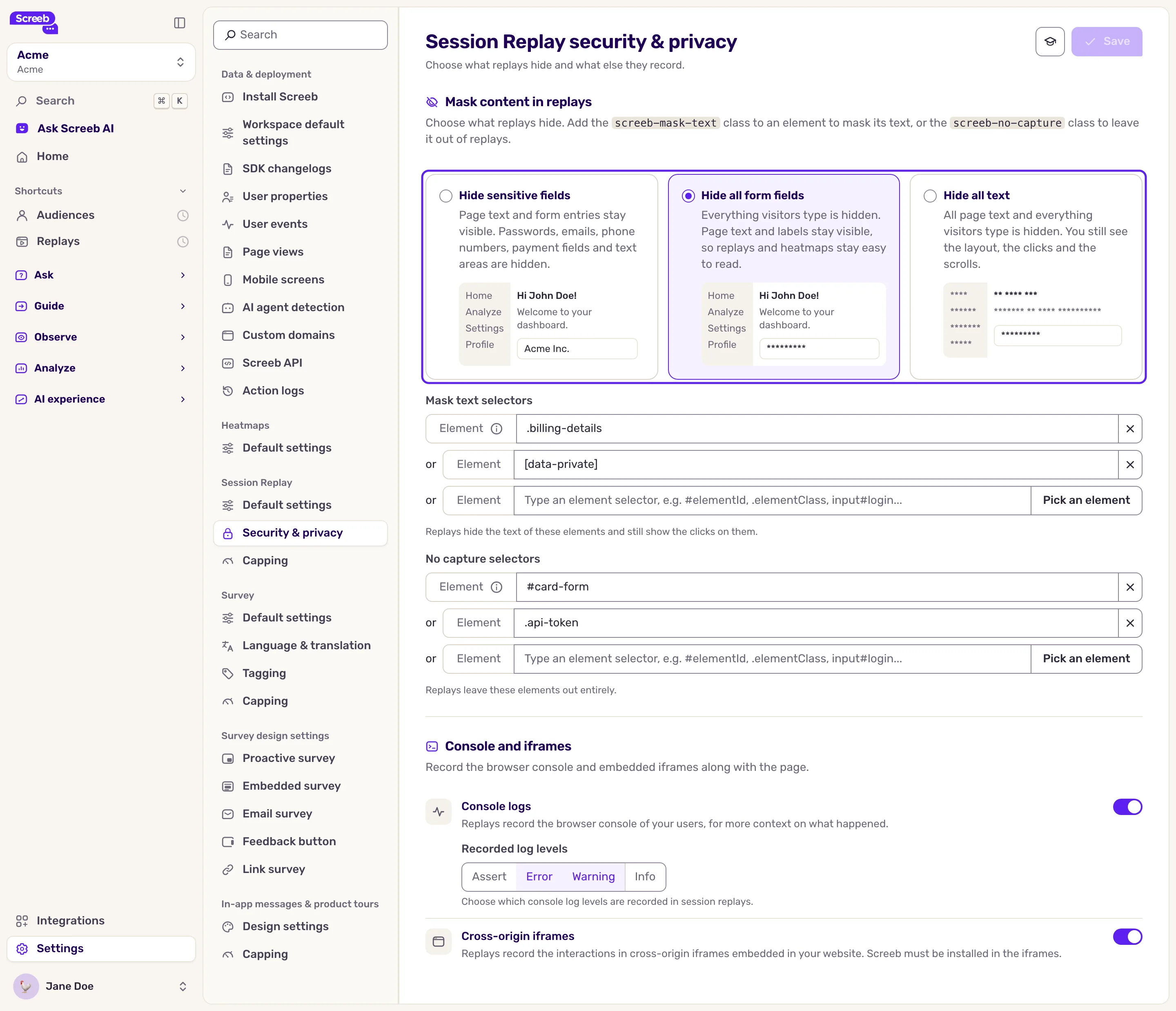
- Under Mask content in replays, pick what replays hide: Hide sensitive fields, Hide all form fields or Hide all text.
- Unless you hide all text, add the CSS selectors of the elements whose text must be hidden in Mask text selectors.
- Add the CSS selectors of the elements to leave out of the recording in No capture selectors.
- Click Save.
The three options, from the most readable to the most private:
- Hide sensitive fields: the page text and what visitors type stay visible, except passwords, emails, phone numbers, payment fields and text areas, plus the elements you list.
- Hide all form fields: everything visitors type shows as asterisks, while the page text and the field labels stay visible. Replays and heatmaps stay easy to read. New workspaces start with this option.
- Hide all text: every text and every field value shows as asterisks. You still see the layout, the clicks and the scrolls, but heatmaps lose the element names.
Changing the option applies to the sessions recorded from then on, not to the replays already saved.
Your developers can also mark elements in the code: the screeb-mask-text class hides the text of an element, the screeb-no-capture class leaves it out of the recording. See the privacy helpers in the developer docs.
Watch a replay of your sensitive pages before you rely on Hide sensitive fields. Add password, payment and health fields to the no capture selectors, or pick a stricter option.
In mobile apps, masking is set in the app code, view by view, with screebMaskText() and screebNoCapture(), or the ScreebMaskText and ScreebNoCapture components in React Native and Flutter. Password fields and views whose identifier names sensitive data, such as a card number or a CVV, are masked automatically.
Record the console and iframes
Section titled “Record the console and iframes”On the same page, under Console and iframes:
- Turn on Console logs to record the browser console, shown in the Console tab of the player. In Recorded log levels, pick Assert, Error, Warning or Info. The first three are selected by default, and at least one is required. Console messages can carry personal data: keep only the levels you use.
- Turn on Cross-origin iframes to record the iframes from other domains embedded in your pages. Screeb must be installed in those iframes too.
What you get
Section titled “What you get”New replays hide what you chose, in the browser, before the session reaches Screeb. Replays already saved keep the masking they were recorded with.