

Configure session replay recording
Turn on Session Replay, choose when recording starts and cap how many sessions are recorded.
The Session Replay settings decide when Screeb records a session and how many sessions it keeps. They apply to the whole workspace. To choose what replays hide, see Protect privacy in session replays.
Before you start
Section titled “Before you start”- Session Replay is part of your plan, and your role lets you edit the workspace settings. Otherwise the Session Replay group does not show in the settings menu.
- The Capping page shows to roles that can create recording scopes.
Turn on recording
Section titled “Turn on recording”- Click Settings, then, under Session Replay, click Default settings.
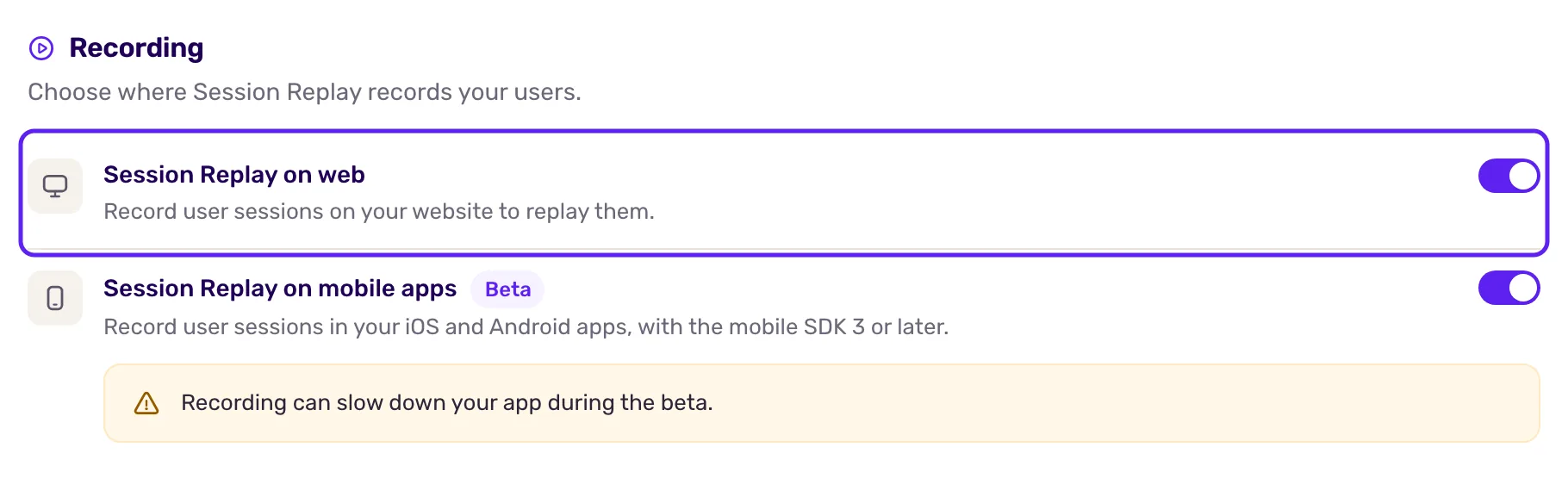
- Turn on Session Replay on web. The other sections open.
- To record your iOS and Android apps too, turn on Session Replay on mobile apps. This option is in beta, needs the mobile SDK version 3 or later and can slow down the app.
- Click Save at the top of the page.
Turning Session Replay on does not record every session: a recording starts only when one of the conditions below, or a recording scope, matches.
Choose when recording starts
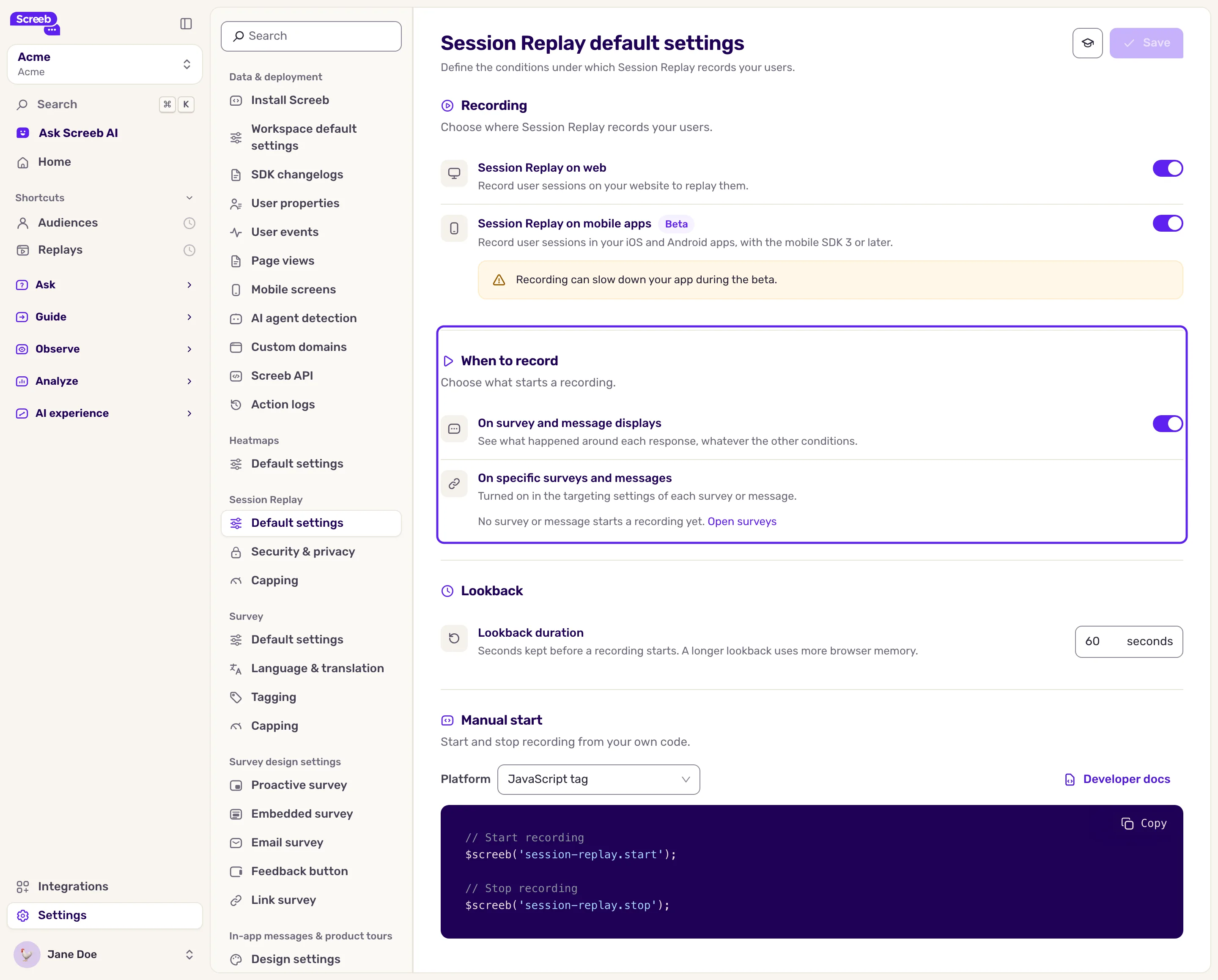
Section titled “Choose when recording starts”Under When to record:
- On survey and message displays: each survey or message display starts a recording, so you can watch what happened around the response. It is on by default.
- On specific surveys and messages: lists the surveys and messages that start a recording on their own. To add one, open its targeting page and tick Turn on Session Replay in its settings.
To record given pages, users or behaviors, create a recording scope, see Choose what to record with recording scopes.
Under Lookback, the Lookback duration also keeps the seconds before a recording starts, from 0 to 300 (30 by default). Set it to 0 to record only from the moment a condition matches. A longer lookback uses more memory in your users’ browsers.
Under Manual start, your developers pick their Platform (JavaScript tag, a web framework or a mobile SDK) and copy the code that starts and stops the recording from your app, with a link to its developer docs.
Cap the number of recordings
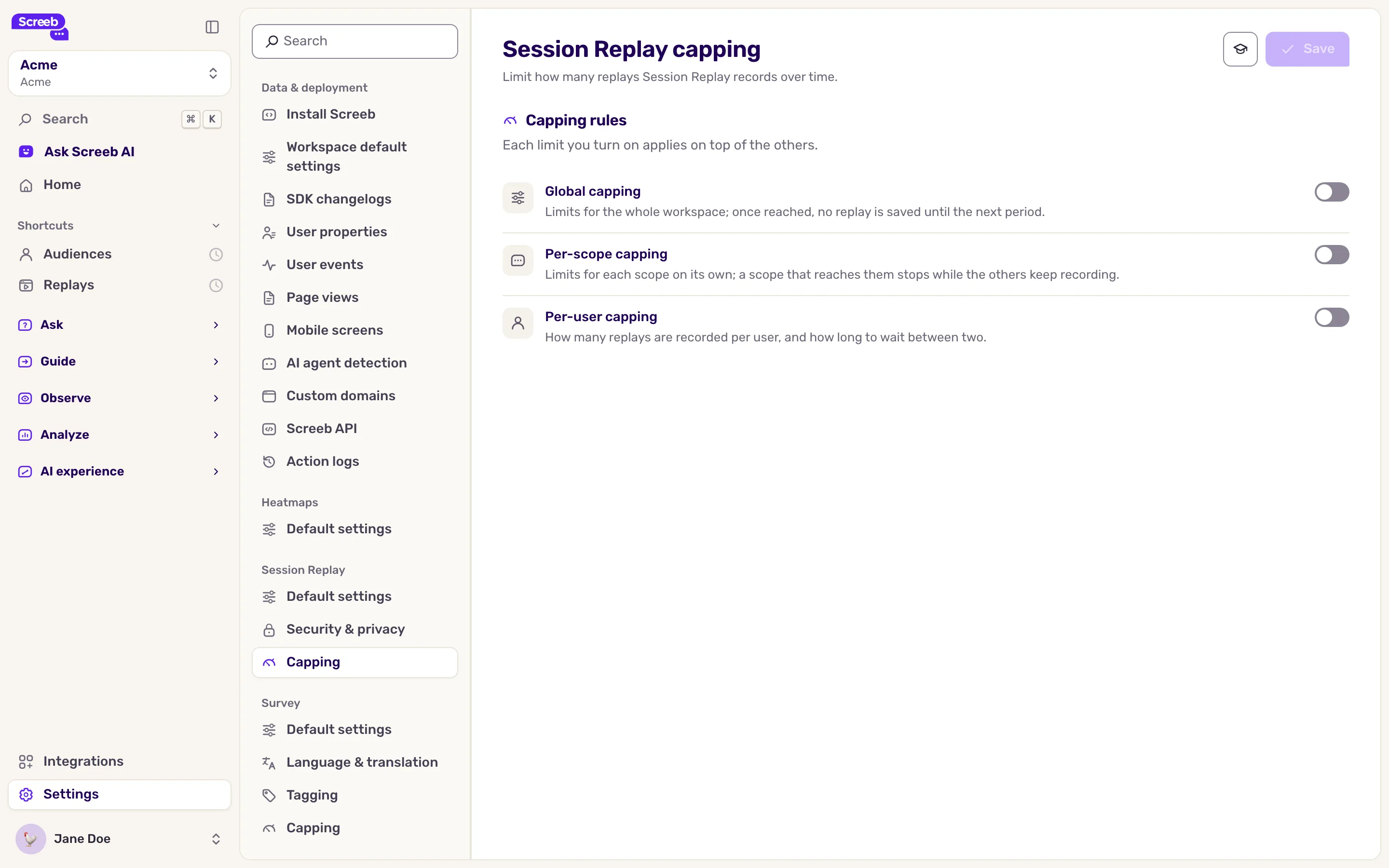
Section titled “Cap the number of recordings”- Under Session Replay, click Capping.
- Turn on the levels you need: Global capping for the whole workspace, Per-scope capping for each recording scope on its own, Per-user capping for each user.
- For each level, pick a Time period and fill in Max session replays. Per user, you can also set a Minimum time between displays between two recordings.
- Click Save.
Once a limit is reached, new sessions are not saved until the period allows it again. With per-scope capping, a scope that reaches its limit stops while the others keep recording. When several levels are on, they all apply.
What you get
Section titled “What you get”New sessions that match a start condition or a recording scope are recorded, within your capping limits, and show in the replay list, see Watch a session replay.
Troubleshooting
Section titled “Troubleshooting”No session is recorded. Check that a start condition is on or a recording scope is live, that no capping limit is reached, and that the Screeb SDK runs on the page.
The mobile app is not recorded. Check that Session Replay on mobile apps is on and that the app uses the mobile SDK version 3 or later.