

Invite teammates and manage roles
Invite teammates to your Screeb organization, choose their organization and workspace roles, and manage pending invitations.
Give your colleagues access to Screeb: invite them to your organization, then choose which workspaces they can open and what they can do there.
Roles at a glance
Section titled “Roles at a glance”Each teammate has one role in the organization, and one role in each workspace they belong to.
| Role | What they can do |
|---|---|
| Admin (organization) | Everything: invite and remove teammates, create and delete workspaces, share quotas, change the organization settings and manage billing. An organization Admin is Admin of every workspace they belong to, and can add themselves to any workspace. |
| Member (organization) | Sees the organization, its workspaces and its teammates. Works in the workspaces they are added to, with the workspace role below. |
| Editor (workspace) | Creates, edits and deletes surveys, messages, segments and releases, and manages user data. Cannot connect integrations, manage the workspace teammates or change most workspace settings. |
| Analyst (workspace) | Reads surveys, responses, users and session replays, exports responses and users, and comments on replays. Cannot change anything else. |
A workspace Admin role only exists for organization Admins: a Member is always Editor or Analyst in a workspace.
Before you start
Section titled “Before you start”- You need the organization Admin role to invite, edit or remove teammates.
- Invite your teammates with their work email: personal addresses (such as Gmail) are refused.
Invite a teammate
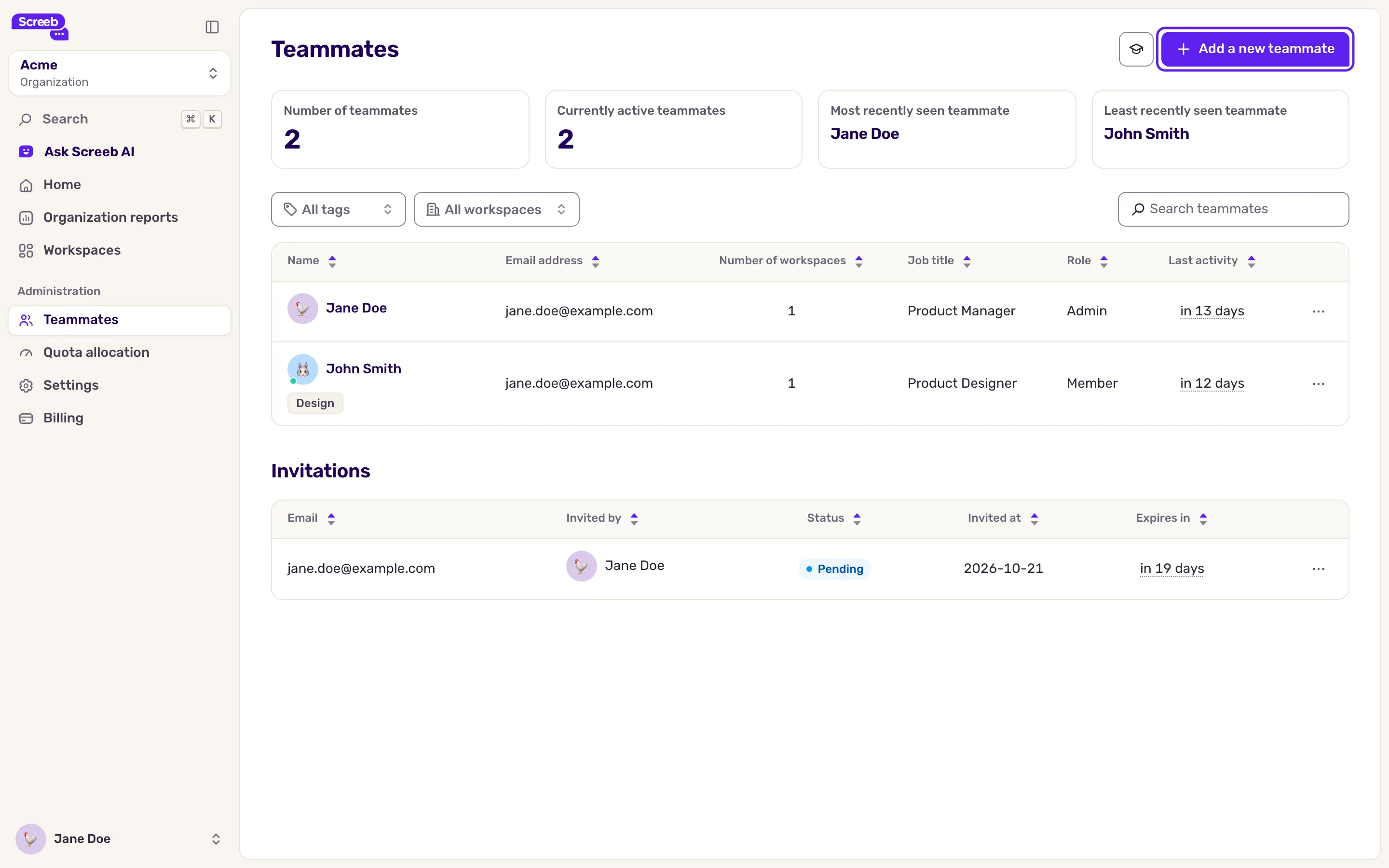
Section titled “Invite a teammate”- Open the Organization view from the workspace switcher, then Teammates. The page lists your teammates with their role, number of workspaces and last activity.
- Click Add a new teammate.
- Type the teammate’s Email, choose the Organization role and, if you want, add Tags to filter your teammates later.
- Choose one or more Workspaces and their Role. To give a different role in other workspaces, click the plus button to add a row. For an organization Admin, the role is always Admin.
- Click Invite to organization.
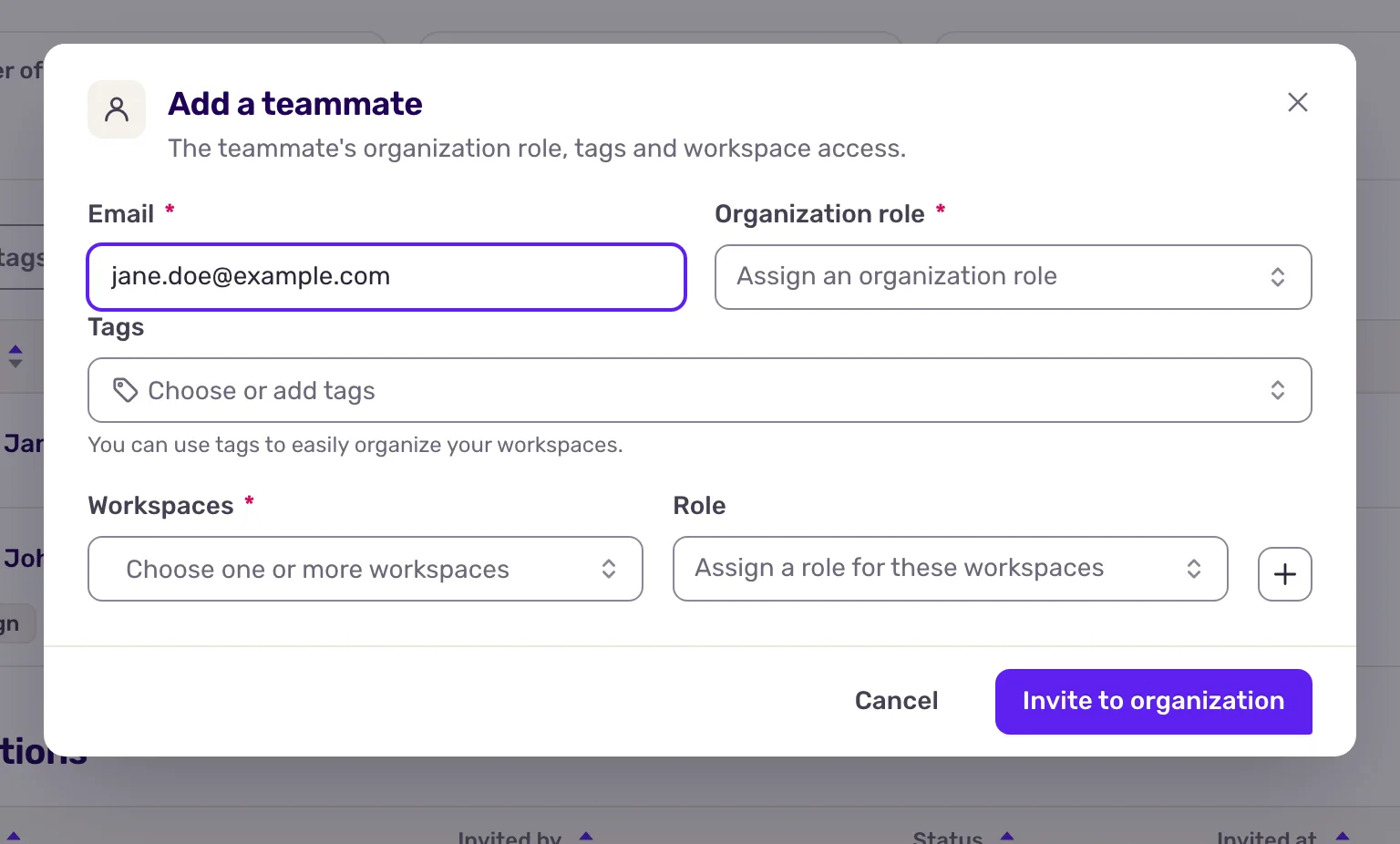
If the person has no Screeb account yet, Screeb emails them an invitation, and the window shows the invitation link so you can also share it yourself. If they already have an account, they join your organization right away, get an email, and your organization Admins are notified.
Follow pending invitations
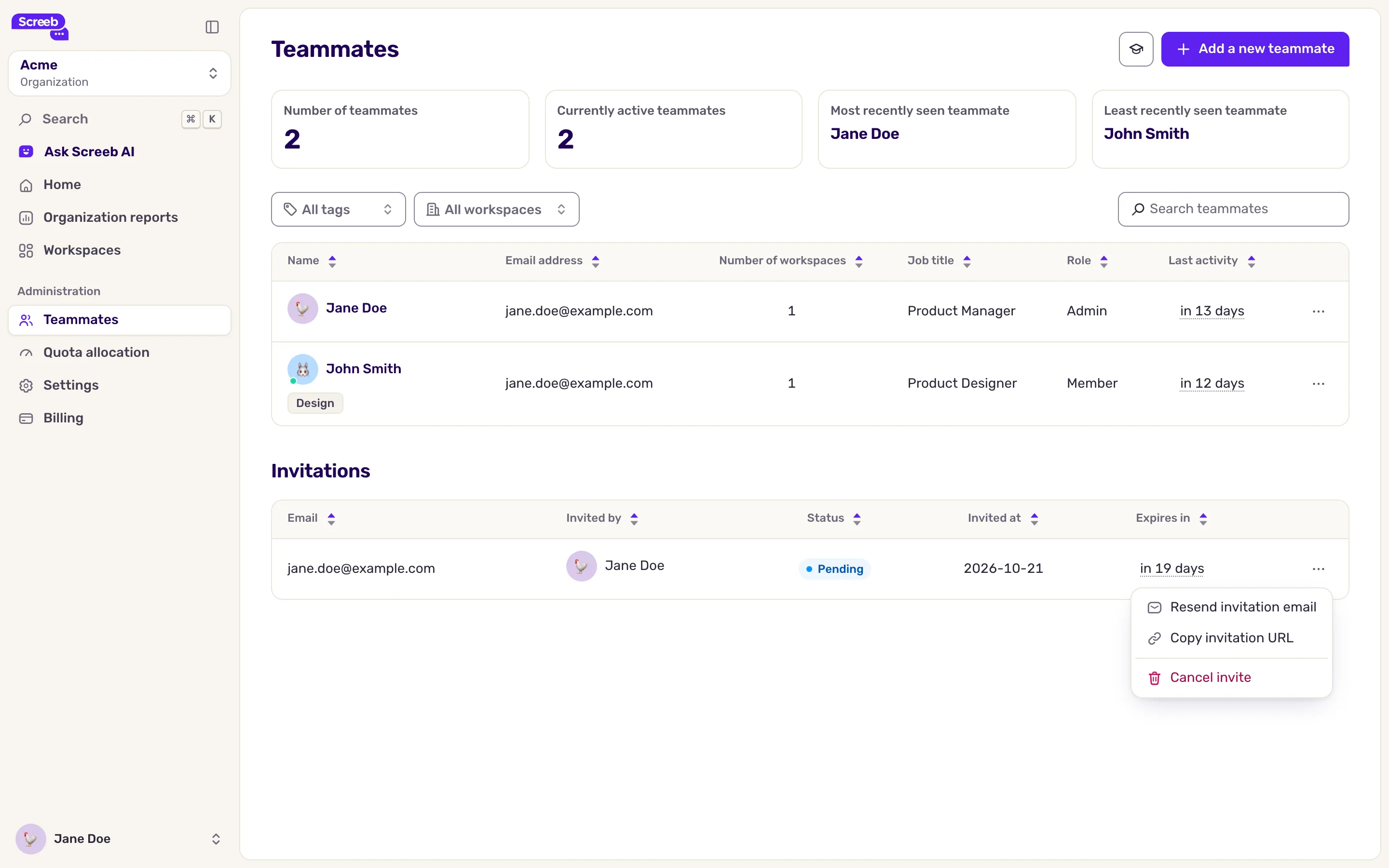
Section titled “Follow pending invitations”The Invitations list, under your teammates, shows who was invited, by whom, and when the invitation expires. An invitation is valid for 7 days. Open the menu of a row to:
- Resend invitation email: sends it again, and renews an expired invitation for 7 more days.
- Copy invitation URL: copies the link to share it another way.
- Cancel invite: the link stops working.
Change a role or remove a teammate
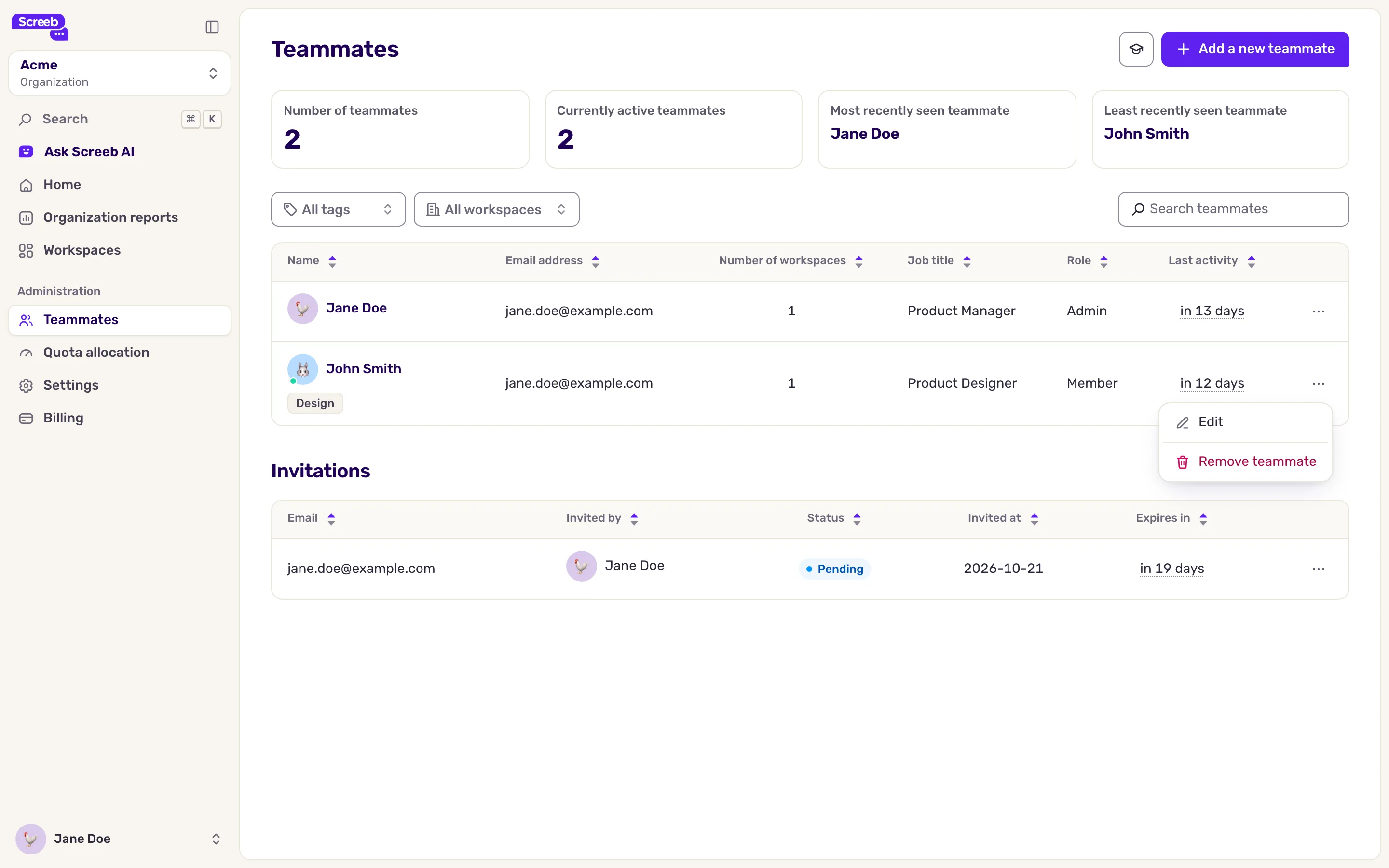
Section titled “Change a role or remove a teammate”- On Teammates, open the menu at the end of the teammate’s row.
- To change their roles or workspaces, click Edit, make your changes, then click Update. You cannot change your own organization role.
- To remove them, click Remove teammate, then Remove teammate. They lose access to the organization and all its workspaces.
You cannot remove yourself: ask another organization Admin.
What you get
Section titled “What you get”Your teammate appears in the teammates list once they join, with access to the workspaces you chose and nothing more.
Troubleshooting
Section titled “Troubleshooting”The invitation is refused. The address is not a work email. Ask your teammate for their company address.
The invitation shows Expired. Resend it from its menu: the new email carries a link valid for 7 days.
You do not see the add button or the row menus. Your organization role is Member. Ask an organization Admin.