

Share responses and reports in Slack
Post every new survey response, or a daily, weekly or monthly report of your survey metrics, to a Slack channel.
The Slack integration posts your survey results in a Slack channel, so your team sees feedback where it already talks. You can post each new response as it comes in, or send a report of your survey metrics once or on a schedule.
Before you start
Section titled “Before you start”- Slack is part of your plan. Without it, the catalog shows Upgrade to install instead of Install, and the Slack option of the share window is greyed out.
- Installing and connecting Slack from Integrations needs the Admin role. Sharing a survey to a channel needs the Editor role or above: without it, the share action does not show.
- You can add apps to your Slack workspace.
Connect
Section titled “Connect”Connect your Slack workspace
Section titled “Connect your Slack workspace”- Open Integrations, find Slack and click Install. The Slack page opens.
- Click the button to connect your Slack account. Slack opens.
- In Slack, pick your workspace and allow the access Screeb asks for: list the public channels, and post messages in them.
- Slack sends you back to the Slack page in Screeb, which now says the account is connected.
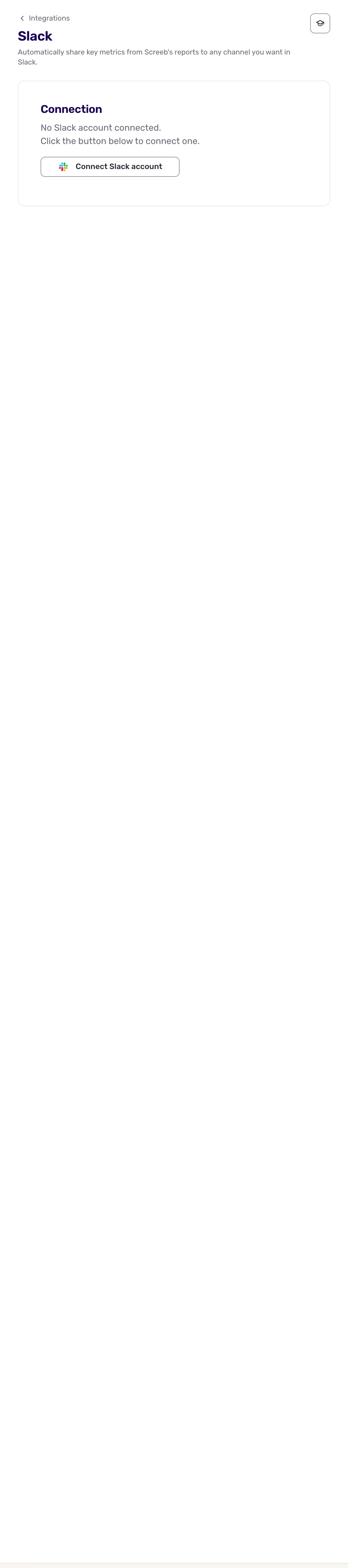
The Slack page has no other settings: what to post, and where, is set on each survey.
Share a survey to a channel
Section titled “Share a survey to a channel”- Open a survey, click Analyze and pick the report to share: All responses for the responses, or Survey analytics, Net Promoter Score and the other score reports for metrics.
- On All responses, click Share responses at the top right. On the other reports, click More at the top right, then Share responses.
- Under Which data do you want to share?, pick what to post. On All responses, choose All responses, or Filtered responses and set the rules under How do you want to filter?. On the other reports, select 1 to 10 metrics.
- Under How do you want to share?, check Slack and pick the channel in Share with.
- For metrics, set Do you want to repeat in the future?: Don't repeat, Daily, Weekly or Monthly.
- Click Share once or Set recurring share for metrics, or Save for responses.
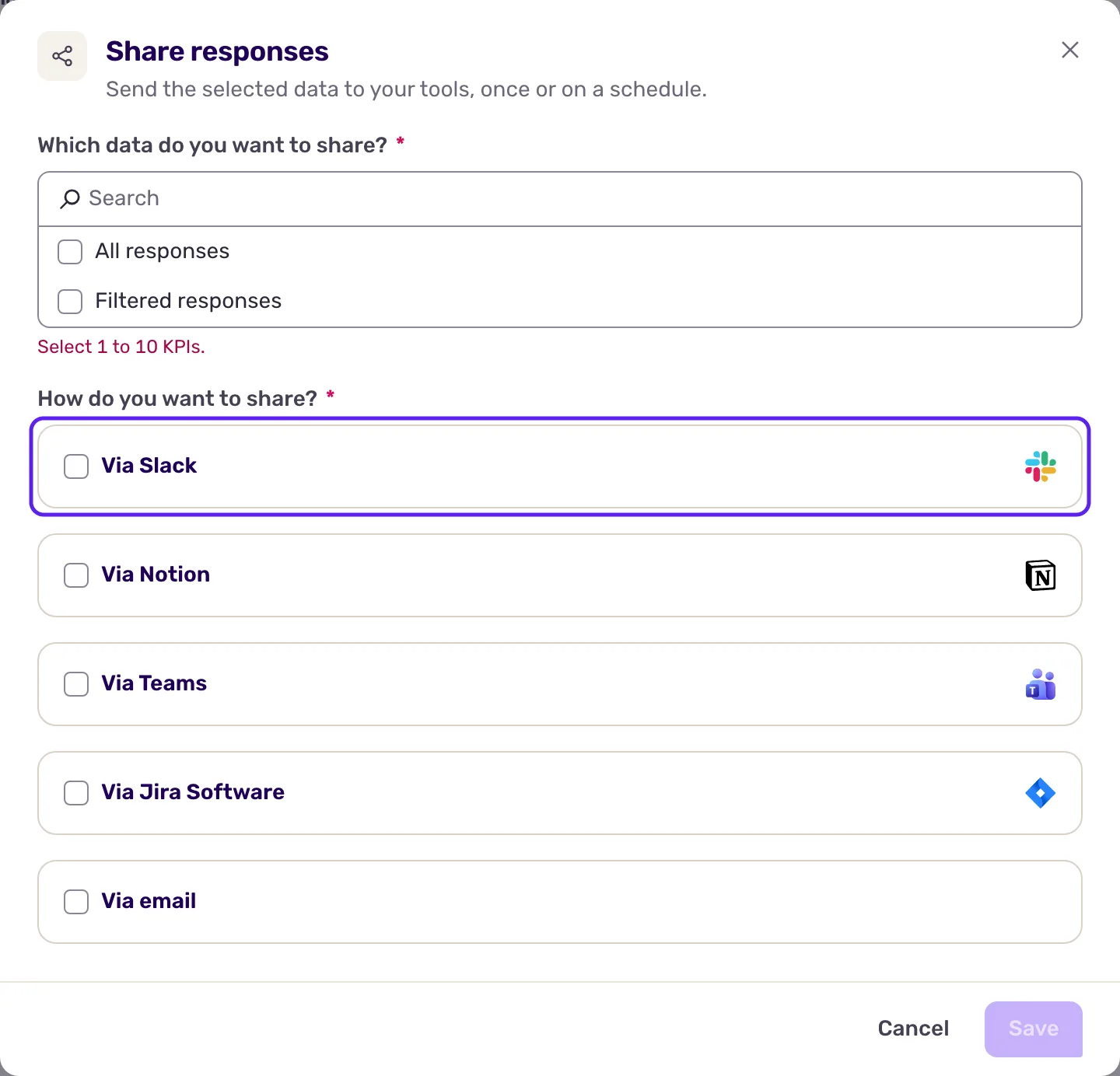
The same window can also send to Microsoft Teams, Notion or email at the same time. Each report of a survey keeps its own share settings.
Data exchanged
Section titled “Data exchanged”Data only goes from Screeb to Slack. Screeb posts as its Slack app, in public channels, without having to be invited.
Responses. With All responses, Screeb posts one message per new response as soon as the first question is answered, then updates that same message with each new answer. The message shows the survey name, each question with its answer, the user’s identifier and known details (name, email, country, language, segments), the tags, and, when captured, the page URL, browser, OS and app version. A button opens the response in Screeb. With Filtered responses, Screeb waits until the response ends or expires, checks your rules, and posts matching responses once. Responses given before you saved, and test responses from the survey preview, are not posted.
Reports. A report message gives the period and the survey name, then each selected metric, as a chart or a list, with a button to the survey’s analytics. A one-time share covers all time and is posted right away. A recurring one covers the last 24 hours, the last 7 days or the last month, and is posted every morning, every Monday morning or on the first day of each month.
Troubleshooting
Section titled “Troubleshooting”No Slack integration installed. Install Slack from Integrations first, then open the share window again.
Could not reach Slack The connection to Slack is broken, and the Slack page shows Reconnect required. Open the Slack page and click Reconnect.
A channel is missing from the list. Screeb lists the public channels that are not archived. Private channels are not supported: use a public channel.
Too many channels to load. Your Slack workspace has too many channels to list. Type the channel ID in Channel ID: in Slack, open the channel, click its name, and copy the ID shown at the bottom of the details, which starts with a C.
Disconnect
Section titled “Disconnect”- To stop sharing one report, open its share window again and click Stop sharing.
- To disconnect Slack, open the Slack page, click Revoke access and confirm. Nothing is posted until you reconnect.
- To remove the integration, click More at the top right of the Slack page, then Delete, and confirm with Delete integration.