

Send Screeb data to a webhook
Send survey displays, answers and completed responses to your own endpoint, for the whole workspace, one survey or one question.
A webhook sends Screeb data to a URL of your choice, as an HTTP POST request, as soon as something happens in a survey: it is displayed, a question is answered, a response is completed. Use it to feed your backend or an automation tool.
You can add webhooks at three levels:
- Workspace: called for every survey of the workspace.
- Survey: called for one survey only.
- Question: called each time one question is answered.
Before you start
Section titled “Before you start”- The Webhook integration is part of your plan. Otherwise the catalog card shows an upgrade button, and surveys show an upgrade banner instead of their webhook settings.
- You are an admin of the workspace.
- You have the URL of the endpoint that receives the data. It must accept
POSTrequests with a JSON body. - Webhooks are sent for surveys only, not for messages.
Add a workspace webhook
Section titled “Add a workspace webhook”- In the main navigation, open Integrations and click Install on the Webhook card. The Webhook page opens, with a new webhook ready to fill in.
- To add another one later, click Add a new webhook.
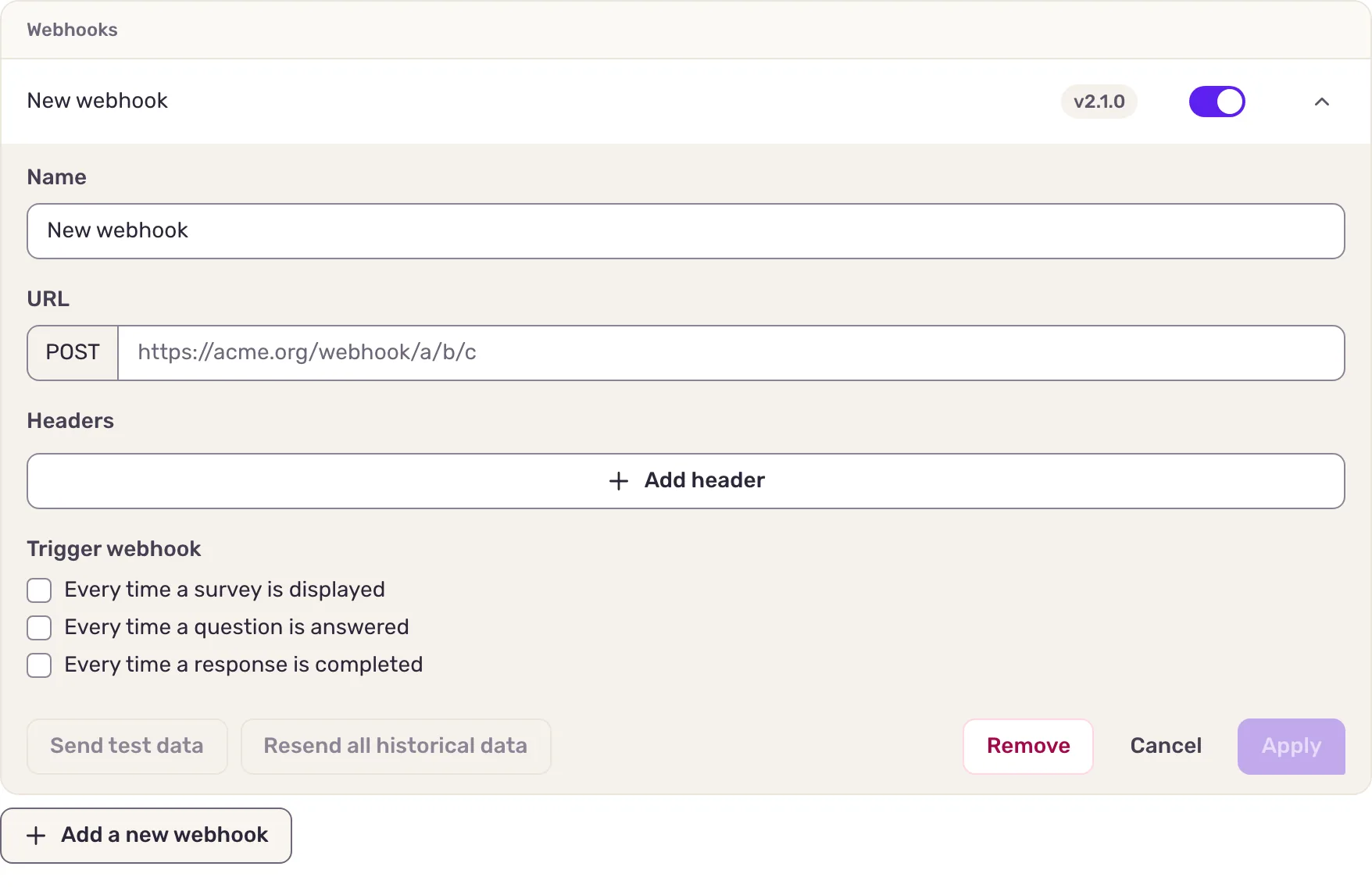
- Enter a Name to recognize it, and the URL of your endpoint.
- If your endpoint needs them, for example to authenticate, add Headers with Add header. Screeb drops
Content-Type,User-Agent,Host,Accept,Connection,Content-Length,Transfer-EncodingandX-Screeb-*headers: it sets them itself. - Under Trigger webhook, tick the events to send: Every time a survey is displayed, Every time a question is answered, Every time a response is completed.
- Click Save. The webhook is saved right away and listed with its version and an on/off switch.

Below the list, Signature secret (optional) holds the secret Screeb signs every request with. Copy it into your endpoint to check that requests come from Screeb, and use Reset if it leaks. Survey and question webhooks are signed with the same secret, as long as the Webhook integration is installed.
Add a webhook to one survey
Section titled “Add a webhook to one survey”- Open the survey, click Analyze, then Connect at the bottom of the side menu.
- In the Webhook section, click Add a new webhook, then fill in the webhook as above.
- Click Apply, then Save at the top of the page.
Add a webhook to one question
Section titled “Add a webhook to one question”- Open the survey in the builder and select a question.
- In the side panel, under Integration, click + Webhook.
- Paste the URL of your endpoint, and add headers if needed. The URL must start with
https://, otherwise the field shows This URL is not secured.. - Save the survey.
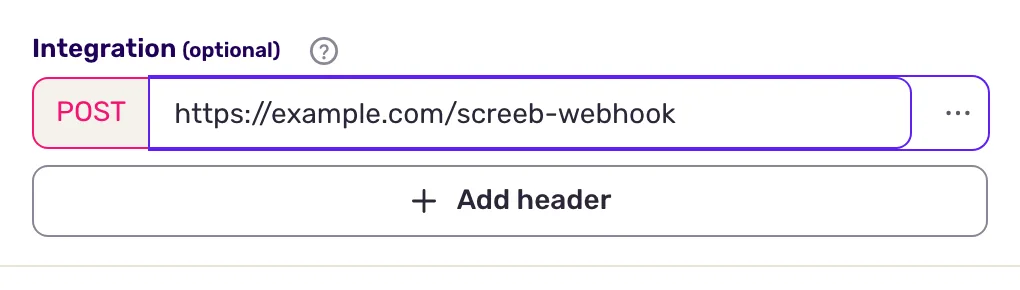
The panel shows for questions that collect an answer, such as NPS, CSAT, multiple choice or text questions. A question webhook is called each time that question is answered.
Data exchanged
Section titled “Data exchanged”Screeb sends a JSON body describing the event: the workspace, the survey, the user (identifier, properties) and the response, with the question and the answer for answered questions, and a link to the session replay when there is one.
| Trigger | event_type |
When it is sent |
|---|---|---|
| Every time a survey is displayed | response.displayed |
The survey is shown to a user, even if they never answer. |
| Every time a question is answered | response.answered |
A user answers a question, once per question. |
| Every time a response is completed | response.ended |
A response ends: the user completed or closed the survey, the response expired, or it was deleted. |
New webhooks use the latest format, version 2.1.0. Older webhooks keep the version shown next to their name; to move one to the latest format, add a new webhook and remove the old one. The fields of each version and the signature check are described in the webhook developer documentation.
Test and resend
Section titled “Test and resend”- Send test data: in an open webhook, click Send test data and pick an event. Screeb sends sample data to the URL in the form, even before you save. If your endpoint refuses it, Could not send the sample shows what it answered.
- Resend past data: click Resend all historical data, pick an event, and either keep the whole history or pick Dates to resend and click Resend from selected dates. A workspace webhook resends the data of every survey, a survey webhook the data of its survey. In the builder, both actions are in the menu at the end of the URL field and apply to that question.
Troubleshooting
Section titled “Troubleshooting”Nothing arrives. Check that the webhook switch is on and that the right triggers are ticked. Answers given in the survey preview send no webhook: test on the live survey, or send test data to see what your endpoint answers.
Requests fail or arrive more than once. Your endpoint must answer 2xx within 15 seconds. A 4xx answer is never retried; a 5xx or 429 answer, a timeout or a network error is retried 3 times with a growing delay, so an event can arrive twice. The URL must resolve to a public address.
The signature check fails. Copy the current secret again: a reset changes it.
Disconnect
Section titled “Disconnect”- To pause a workspace webhook, switch it off in the list. To delete it, open it and click Remove.
- To delete a survey webhook, remove it on the Connect page and save. To delete a question webhook, use Remove in the menu of its URL field, then save the survey.
- Removing the Webhook integration from the catalog deletes all workspace webhooks and the signature secret. Survey and question webhooks keep sending, unsigned: delete them too if needed.