

Export responses to an SFTP server
Upload a JSON file to your SFTP server each time a survey is displayed, a question is answered or a response ends.
The SFTP integration uploads your survey data as JSON files to your own SFTP server, where your internal tools or pipelines can pick them up. Set it up once for every survey of the workspace, or on a single survey.
Before you start
Section titled “Before you start”- SFTP export is part of your plan. Without it, the SFTP card of the catalog shows Upgrade to install.
- You are an admin of the Screeb workspace: only admins can install and configure integrations.
- You have an SFTP server reachable from the internet, its host name or IP address, and a user account on it. The user signs in with a password, or with an SSH key that Screeb generates for you.
Connect
Section titled “Connect”- Open Integrations, find SFTP and click Install. The SFTP page opens with a first destination ready to fill in.
- Enter a Name for this destination.
- Fill in Host and Username. Leave Port empty to use port 22, and Path empty to write at the root of the account.
- Under Authentication method, choose Password and enter the password, or choose SSH key and click Generate a key pair. Copy the Public key into the
authorized_keysfile of that user on your server. The private key stays at Screeb and cannot be displayed. - If your server only accepts known IP addresses, allow the addresses listed under Screeb egress IP addresses.
- Under Server identity, click Test connection. On success, Screeb shows Server identity recorded with the fingerprint of your server. If you set a path, the test creates that folder when it does not exist yet.
- Under Export a file when, tick one or more events: Every time a survey is displayed, Every time a question is answered, Every time a response is completed.
- Optionally, click Send test data and pick an event to upload a sample file.
- Click Save. This also records the server identity: from then on, each export checks that the server is the same one.
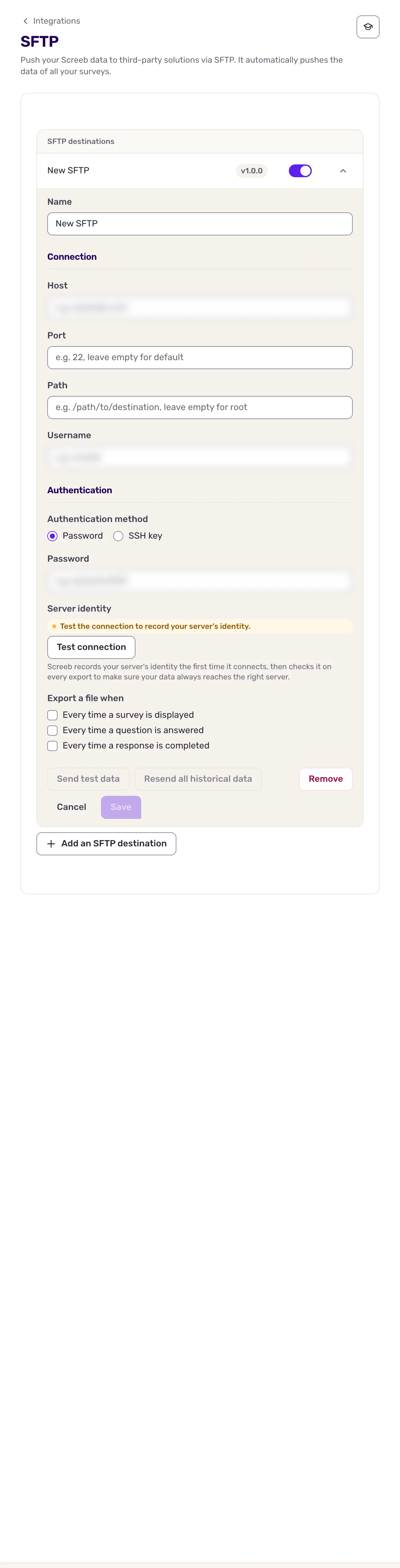
To export to several servers or folders, click Add an SFTP destination.
Export a single survey
Section titled “Export a single survey”Instead of every survey, you can export one survey only. Open the survey, click Analyze, then Connect. In the SFTP section, click Add an SFTP destination, fill in the same fields, click Apply, then Save at the top of the page.
Data exchanged
Section titled “Data exchanged”Files only go from Screeb to your server. Each file is named after the response and holds the workspace, the channel, the survey, the user with their properties, and the response with its answers:
- A display goes to
workspaces/<workspace_id>/surveys/<survey_id>/displays/<response_id>.json. - An answered question or an ended response goes to
workspaces/<workspace_id>/surveys/<survey_id>/responses/<response_id>.json. Each new upload for the same response replaces the file, so it always holds the latest state.
The path you set is added in front. Files are written under a temporary name, then renamed, so a script never reads a half-written file. Responses to surveys only are exported, not to in-app messages, and test responses from the survey preview are skipped. The file format is described in the SFTP v1.0.0 developer documentation.
To export the responses collected before the destination existed, open it, click Resend all historical data, pick the event, then the dates.
Troubleshooting
Section titled “Troubleshooting”The connection test fails. Check the host, port, username and password or public key, then that the Screeb IP addresses are allowed on your server.
“Your server's identity changed since it was last recorded. If you didn't change servers or rotate keys, check with your team before saving.” The server answered with another key than the one recorded. If you moved to a new server or renewed its key on purpose, click Reset, test the connection again and save. Otherwise, check with your team first: exports fail until the identity matches.
Disconnect
Section titled “Disconnect”- To pause a destination, turn off its switch in the list. To delete it, open it and click Remove.
- To remove the integration, click More at the top right of the SFTP page, then Delete, and confirm with Delete integration.