

Send Screeb data to Stitch
Send survey displays, answers or completed responses to your data warehouse through a Stitch webhook.
The Stitch integration sends the survey data of your workspace to a Stitch webhook. Stitch then loads it into your data warehouse, where you can join it with the rest of your data. It covers every survey of the workspace, without any setup per survey.
Before you start
Section titled “Before you start”- Stitch is part of your plan. Without it, the Stitch card of the catalog shows Upgrade to install.
- You are an admin of the Screeb workspace: only admins can install and configure integrations.
- You have a Stitch account and can add a webhook source in it. Stitch gives this source a URL that contains
stitchdata.com/v1/clients/: Screeb only accepts URLs of this form.
Connect
Section titled “Connect”- In Stitch, add a webhook source for Screeb and copy its URL.
- In Screeb, open Integrations, find Stitch and click Install. The Stitch page opens with a first connection ready to fill in.
- In Name, enter a name your team will recognize, for example the name of the warehouse.
- Paste the Stitch webhook URL in URL.
- Under Push data, choose when Screeb sends data: Every time a survey is displayed, Every time a question is answered or Every time a response is completed. A connection sends one kind of event.
- To check the setup, click Send test data and pick an event. Screeb sends a sample to the URL; it shows up in Stitch after its next load.
- Click Save. The connection is listed with its version and a switch to pause it.
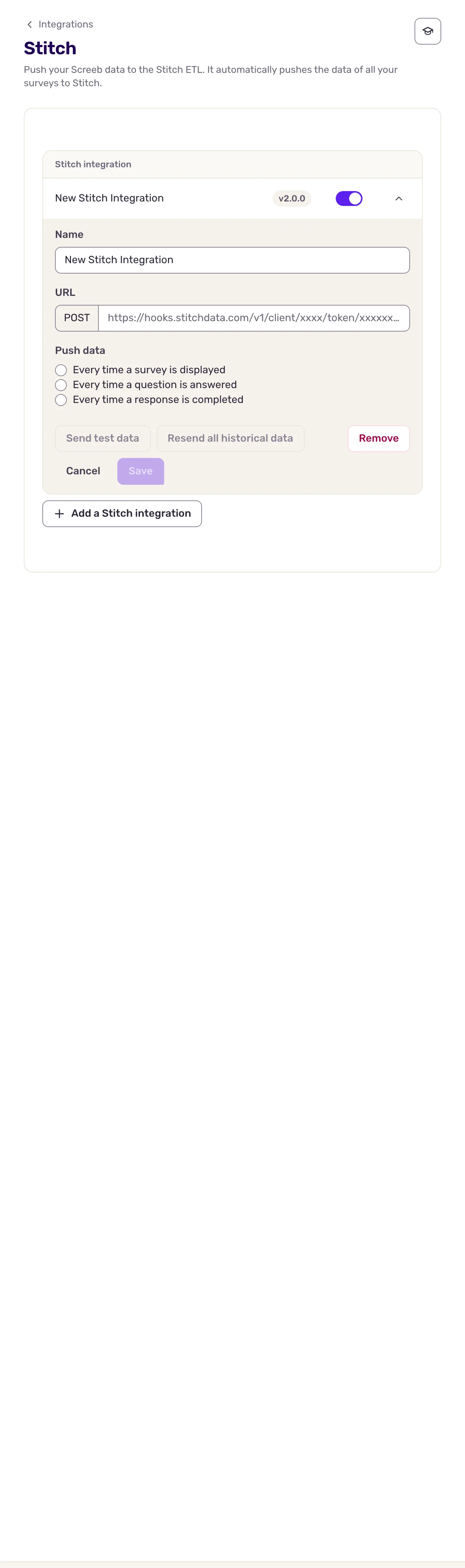
To send several kinds of events, or to feed several Stitch sources, click Add a Stitch integration and set up one connection for each.
Data exchanged
Section titled “Data exchanged”Data only goes from Screeb to Stitch. For each enabled connection, Screeb sends one request per event to the URL:
- Every time a survey is displayed: the survey was shown, even if the user answers nothing.
- Every time a question is answered: one request for each question answered.
- Every time a response is completed: the response is over, because the user finished or closed the survey. It is also sent when a response expires or is deleted.
Each request carries the workspace, the channel, the survey, the user with their properties, and the response with its answers, hidden fields and context. Responses to surveys only are sent, not to in-app messages, and test responses from the survey preview are skipped.
New connections use the v2.0.0 format. The tables Stitch creates in your warehouse and their columns are described in the Stitch v2.0.0 developer documentation.
To load the responses collected before the connection existed, open the connection, click Resend all historical data and pick the event to resend.
Troubleshooting
Section titled “Troubleshooting”The URL field shows an error. The URL must contain stitchdata.com/v1/clients/. Copy it again from the webhook source in Stitch.
Nothing reaches Stitch. Check that the connection switch is on, then use Send test data. Stitch loads webhook data in batches, so allow some time before checking your warehouse.
Disconnect
Section titled “Disconnect”- To pause a connection, turn off its switch in the list.
- To delete one connection, open it and click Remove.
- To remove the integration, click More at the top right of the Stitch page, then Delete, and confirm with Delete integration. Every connection is deleted.