

Sync responses and reports to Notion
Fill a Notion database with every new survey response, or with your survey metrics once or on a schedule.
The Notion integration writes your survey results into a Notion database that Screeb creates for you. Each new response becomes a row, so your team can sort, tag and link feedback next to the rest of its work. You can also log your survey metrics there, once or on a schedule.
Before you start
Section titled “Before you start”- Notion is part of your plan. Without it, the catalog shows Upgrade to install instead of Install, and the Notion option of the share window is greyed out.
- Installing and connecting Notion from Integrations, and creating a database from the share window, need the Admin role. Sharing a survey to Notion needs the Editor role or above: without it, the share action does not show.
- You have a Notion page where Screeb can create its databases, and you can give Screeb access to it.
Connect
Section titled “Connect”Connect your Notion workspace
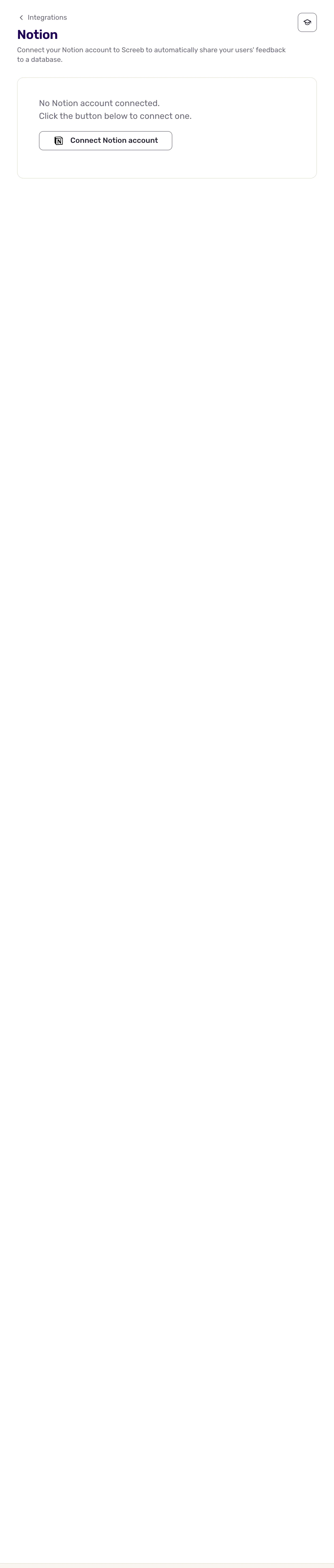
Section titled “Connect your Notion workspace”- Open Integrations, find Notion and click Install. The Notion page opens.
- Click the button to connect your Notion account. Notion opens.
- In Notion, pick your workspace and select the pages Screeb can access. Include the page where the databases should go.
- Notion sends you back to the Notion page in Screeb, which now says the account is connected.
Sync a survey to a database
Section titled “Sync a survey to a database”- Open a survey, click Analyze and pick the report to sync: All responses for the responses, or Survey analytics, Net Promoter Score and the other score reports for metrics.
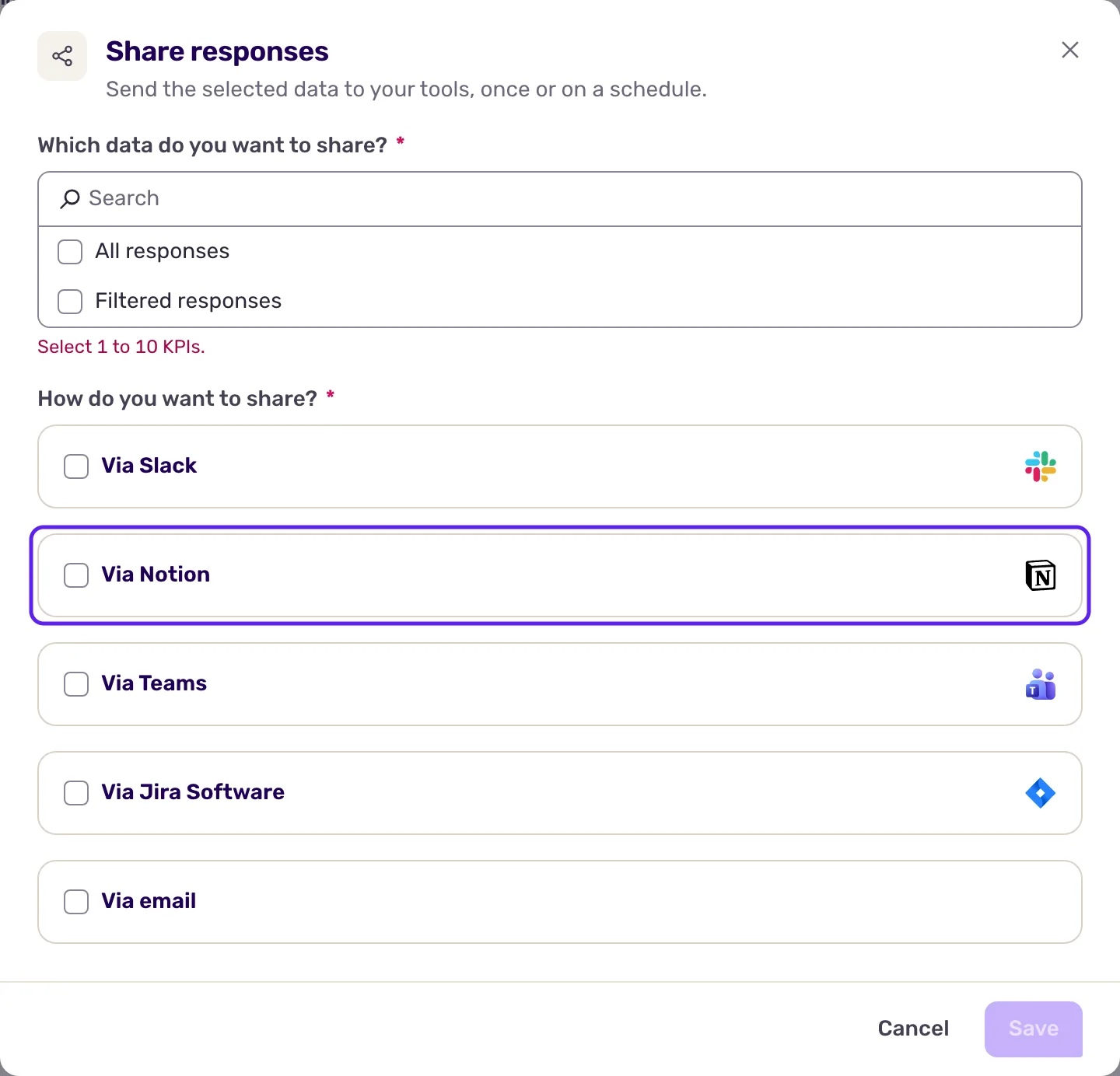
- On All responses, click Share responses at the top right. On the other reports, click More at the top right, then Share responses.
- Under Which data do you want to share?, pick what to sync: All responses or Filtered responses on the responses, 1 to 10 metrics on the other reports.
- Under How do you want to share?, check Notion.
- In Search a parent page by name or ID, type the name of the parent page, or paste its ID, and select it.
- Click Create a database in this page. Screeb creates a database named after the survey (and, for metrics, after the report) and shows it in Share to Notion database.
- For metrics, set Do you want to repeat in the future?, then click Share once or Set recurring share. For responses, click Save.
Each report of a survey needs its own database: Screeb refuses to save two reports of the same survey into one database.
Data exchanged
Section titled “Data exchanged”Data only goes from Screeb to Notion.
Responses. Each response is one row, created at the first answer and updated with each new answer and when the response ends. The columns are the identifier, response ID, completion, end reason, date, name, email and tags of the response, one column per question, and columns for the hidden fields, user properties and context sent with the response. Screeb adds the columns of new questions on its own. With Filtered responses, a row is written only once the response ends or expires, if it matches your rules. Test responses from the survey preview are skipped.
Reports. Each send adds one row per metric, with the metric name, its value and two date columns:
| Column | Content |
|---|---|
| Sent at | When the row was sent, with date and time, in UTC. It has the same meaning for every interval. |
| Data period | The period the value is computed on. Daily: the previous calendar day, as a date without time, in the report’s time zone (Europe/Paris by default). Weekly or monthly: the 7 days or the month before the send, up to the send. One-time share: empty. |
Rows are never overwritten, so the database keeps the history of every report. A one-time share covers all time; a recurring one covers the last 24 hours, the last 7 days or the last month, and is sent every morning, every Monday morning or on the first day of each month. Read the send time in Sent at, which is in UTC. Databases created before Data period existed get the column at their next send; no column is renamed.
Only responses and reports sent after you save are written to Notion. To fill a database with past responses or reports, contact Screeb support.
Notion limits how many requests an integration can make. When it does, Screeb waits and sends again later, and the share window shows Notion is currently rate limiting Screeb, so its details could not be loaded. Your settings can still be saved.
Troubleshooting
Section titled “Troubleshooting”A Notion formula on Sent at gives the wrong day. Sent at is the moment of the send, in UTC. To group rows by the period the data covers, use Data period instead. Rows sent from 2 to 6 November 2026 hold only a date in Sent at (the day covered) and have no Data period. If you ask support to fill the database with past reports, delete those rows first, or they will be duplicated.
No Notion integration installed. Install Notion from Integrations first.
Could not reach Notion The connection is broken, and the Notion page shows Reconnect required. Open the Notion page and click Reconnect.
No page found Screeb only sees the pages you gave it access to. Click Reconnect on the Notion page and select the page in Notion.
Could not load this Notion database The database was deleted, or Screeb lost access to it. Click Remove, then create a new database.
Disconnect
Section titled “Disconnect”- To stop syncing one report, open its share window again and click Stop sharing. The database and its rows stay in Notion.
- To disconnect Notion, open the Notion page, click Revoke access and confirm.
- To remove the integration, click More at the top right of the Notion page, then Delete, and confirm with Delete integration.