

Review who changed what with action logs
See which teammate created, changed, published or deleted surveys, messages, settings, integrations and members, in a workspace or across your organization.
Action logs list the changes your teammates make in Screeb: who did what, on which item, and when. Use them to understand why a survey stopped, who removed an integration, or what changed in your settings.
Before you start
Section titled “Before you start”- Every teammate of a workspace can see its action logs, whatever their role. The organization action logs need the organization Admin role, see Invite teammates and manage roles.
- Action logs are included in every plan.
What is logged
Section titled “What is logged”Each entry records one action by a teammate in the admin:
- Surveys and messages: created, updated, duplicated, published, unpublished and deleted.
- Funnels: created, updated, duplicated and deleted.
- Workspace reports: created, updated and deleted. A change applied from Screeb AI carries
via: screeb_aiin its metadata. - Heatmaps: behavioral capture turned on or off.
- Session Replay: replays deleted, recording scopes created, updated and deleted.
- Workspace settings and teammates: settings updated, members invited, updated and removed.
- Integrations: installed, updated, connected, disconnected and removed.
- Users, segments and responses: deleted.
- Organization (organization page only): workspaces created, updated and deleted, organization members invited, updated and removed, organization settings updated.
What your users do on your site or app is not an action log: see their activity in Browse user profiles.
Open the action logs
Section titled “Open the action logs”For one workspace: in the workspace sidebar, click Settings, then, under Data & deployment, click Action logs. The Action logs page opens.
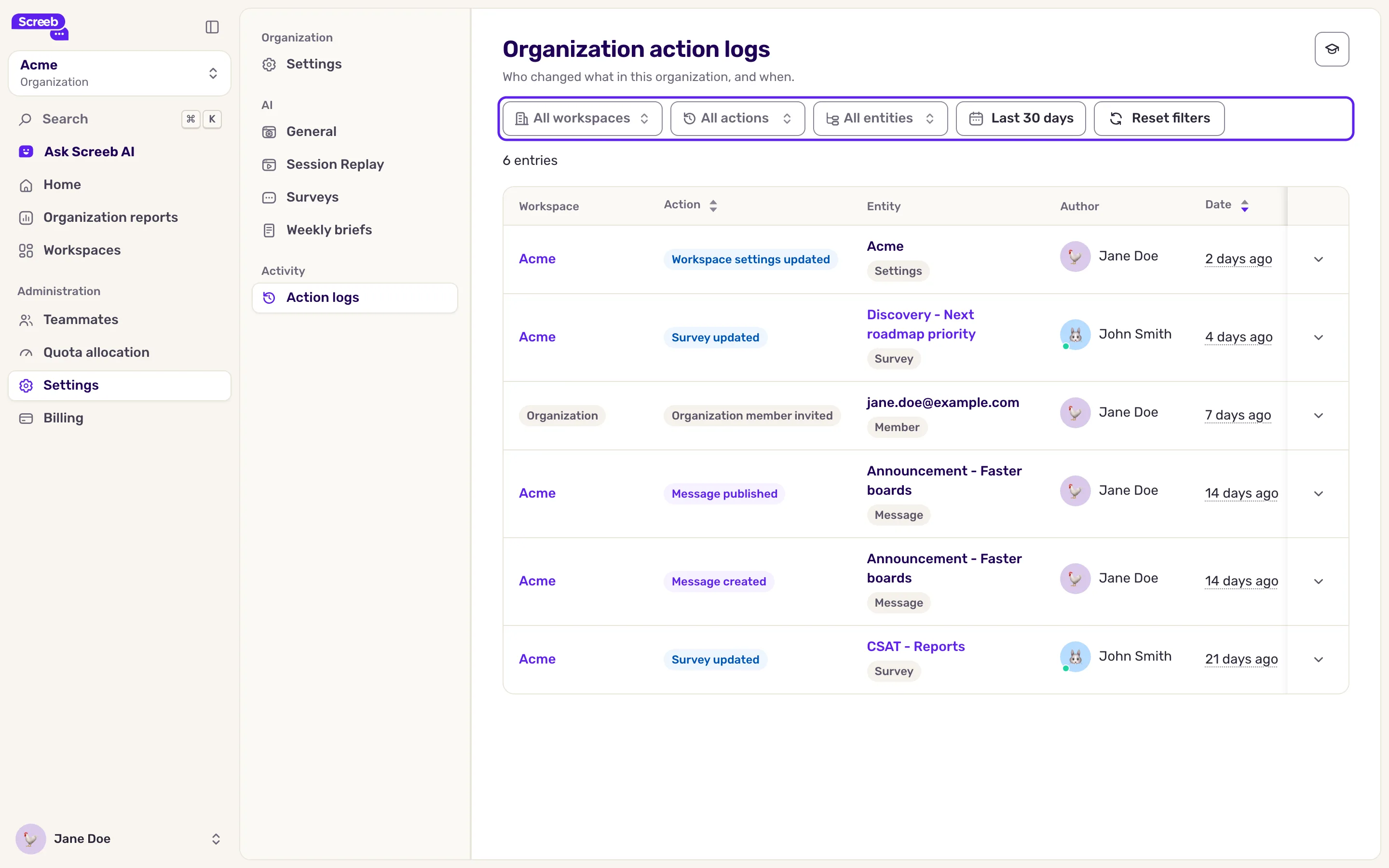
For the whole organization: open the Organization view from the workspace switcher and click Settings. Then, under Activity, click Action logs. The Organization action logs page also has a Workspace column, and shows Organization for actions that belong to no workspace.
Find an action
Section titled “Find an action”- Set the period with the date picker. It cannot start before your workspace or organization was created.
- Narrow the list with All actions (for example Survey deleted) and All entities (for example surveys or integrations). On the organization page, All workspaces keeps one workspace.
- Read each row: Action, Entity (the item and its type), Author and Date. Hover the date to see the exact time. Sort by action or date from the column headers.
- Click an item name to open it: a survey opens on its results, a funnel in its editor, a report on its page, an integration on the integrations page, a heatmap entry on the heatmap settings. A deleted item no longer opens.
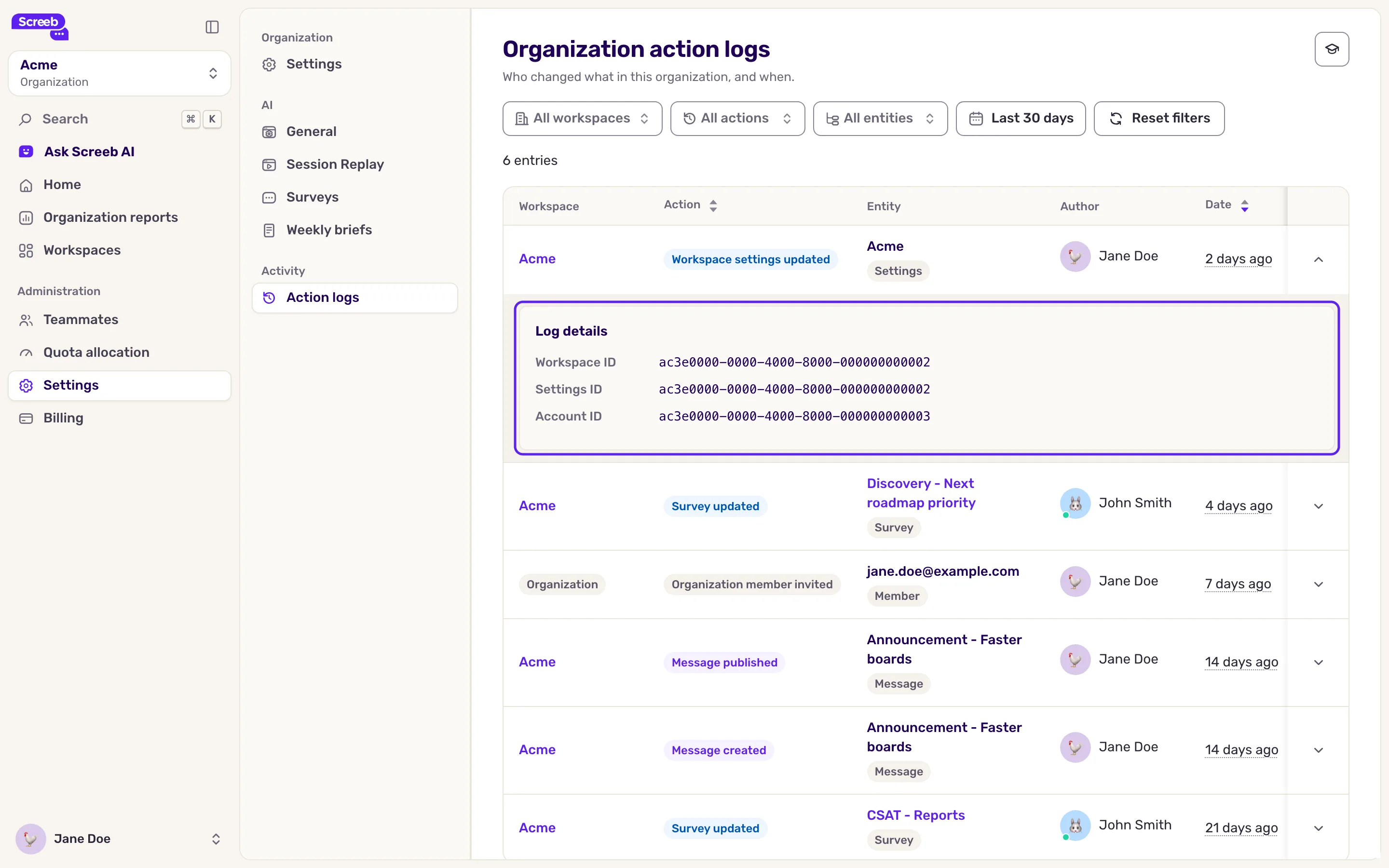
- Expand a row to see its Log details: the ids of the workspace, the item and the author, and the Metadata of the change when there is any.
- Click Reset filters to start over.
A Admin impersonation badge next to the author means a Screeb team member made the change while connected to that teammate’s account, usually to help them at their request.
What you get
Section titled “What you get”A history of the changes made in the admin, by person and by item, to answer “who did this, and when” without asking around.
Troubleshooting
Section titled “Troubleshooting”“No action logs match your filters”. Widen the period, or click Reset filters.
The item name is not a link. Messages, settings, members, replays and recording scopes have no page to open from the action logs.
“Could not load action logs” Click the reload button. If it keeps failing, contact support.