

Send feedback to Harvestr
Send a survey response from Screeb to Harvestr by email, with the respondent's details, to add it to your feedback.
The Harvestr integration sends a survey response to Harvestr in one click, from the list of responses. Screeb emails the response, with the details of the respondent, to an inbound address of Harvestr. Harvestr turns the emails sent to that address into new feedback.
Before you start
Section titled “Before you start”- The Harvestr integration is included in your plan. Otherwise its card in the catalog shows Upgrade to install.
- To install or remove the integration, you need the admin role on the workspace. Once it is installed, every member of the workspace can send responses.
- In Harvestr, find the email address your Harvestr workspace uses to collect feedback by email. It ends with
.harvestrapp.com.
Connect
Section titled “Connect”- In the sidebar, click Integrations, then Install on the Harvestr card. The Harvestr page opens.
- In Email, paste the Harvestr address. Screeb only accepts an address that ends with
.harvestrapp.com. - Click Install. The message Integration installed confirms it.

To change the address later, open the same page, edit the field and click Save.
Send a response
Section titled “Send a response”- Open the survey, click Analyze, then All responses.
- On the response to send, click More (the three dots of the row), then Send to Harvestr.
- The message Feedback sent confirms that Screeb sent the email.
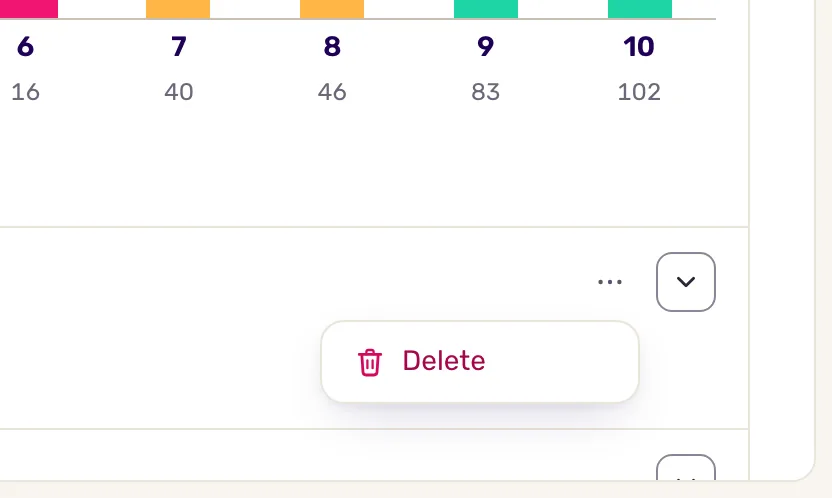
Screeb sends a response only when you click Send to Harvestr, one answer at a time. New responses are not forwarded automatically.
Data exchanged
Section titled “Data exchanged”Data goes one way, from Screeb to Harvestr, by email. Nothing comes back from Harvestr.
Each click sends one email:
- From: Screeb,
fwd-harvestr@screeb.app. - To: the address saved on the integration page.
- Subject:
Screeb to Harvestr.
The email contains:
- the name of the teammate who sent it and the name of the survey;
- the question and the answer of that row;
- who answered: name (or Screeb identifier), email, identifier and segments;
- their latest NPS, CSAT and CES scores, when Screeb has them;
- the hidden fields, the response context (such as page, locale, platform or campaign) and the user properties of the response.
Troubleshooting
Section titled “Troubleshooting”Install stays disabled. Its tooltip reads “Fill in the required fields correctly to save.” The address must end with .harvestrapp.com: copy it again from Harvestr.
The menu has no Send to Harvestr entry. The integration is not installed on this workspace, or it is no longer in your plan. Check the Harvestr page.
Could not send feedback appears. Try again a moment later. If the error persists, contact support.
The email does not show up in Harvestr. Check the address saved in Screeb against the one Harvestr gives you. If Harvestr only accepts emails from known senders, allow fwd-harvestr@screeb.app.
Disconnect
Section titled “Disconnect”- Open the Harvestr page.
- Click More at the top right, then Delete, and confirm with Delete integration. Screeb deletes the saved address and the Send to Harvestr entry disappears.
The responses already sent stay in Harvestr.
Go further
Section titled “Go further”- Connect Screeb to your tools, for the other integrations.
- Filter survey responses, to find the responses worth sending.
- Export survey responses, to share many responses at once.